
Introducing Apps: work apps, access and requests
New in FirstHR: Apps, one list of your company's work apps and who has access to each, with sign-in steps, requests from your team and nothing left open when someone leaves.

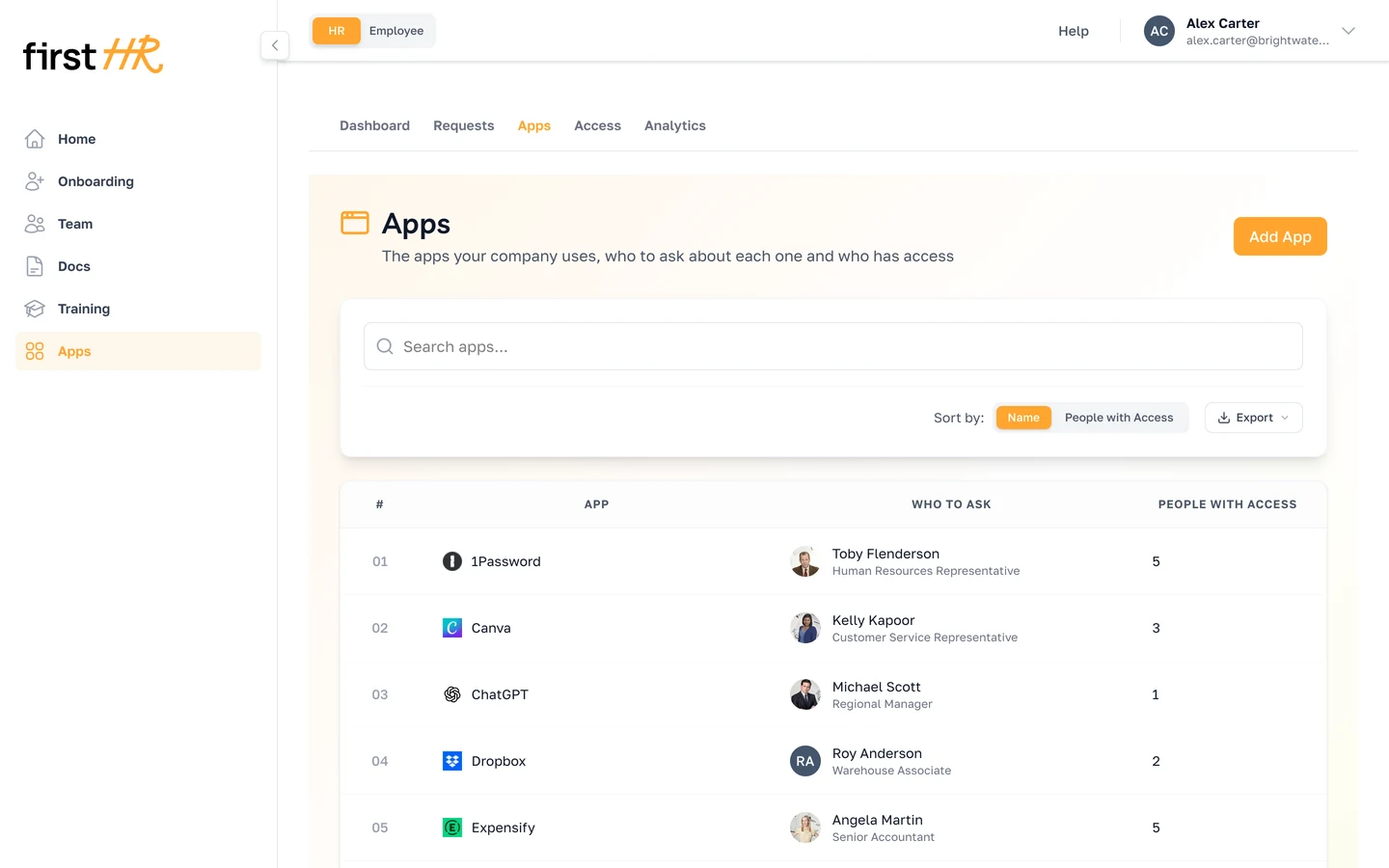
FirstHR has a new section: Apps. It's one list of the apps your company works in, from email and chat to payroll, and of who has access to each one. HR gives access with the sign-in steps, each person confirms it works, your team asks for the apps they need, and nobody leaves with access still open.
We built it because most small companies have no IT department. Access is handled by HR, the office manager or the owner, and it lives in someone's head or an old spreadsheet. A new hire waits a day for their logins, and someone who left months ago can still open the shared drive.
Every work app on one list
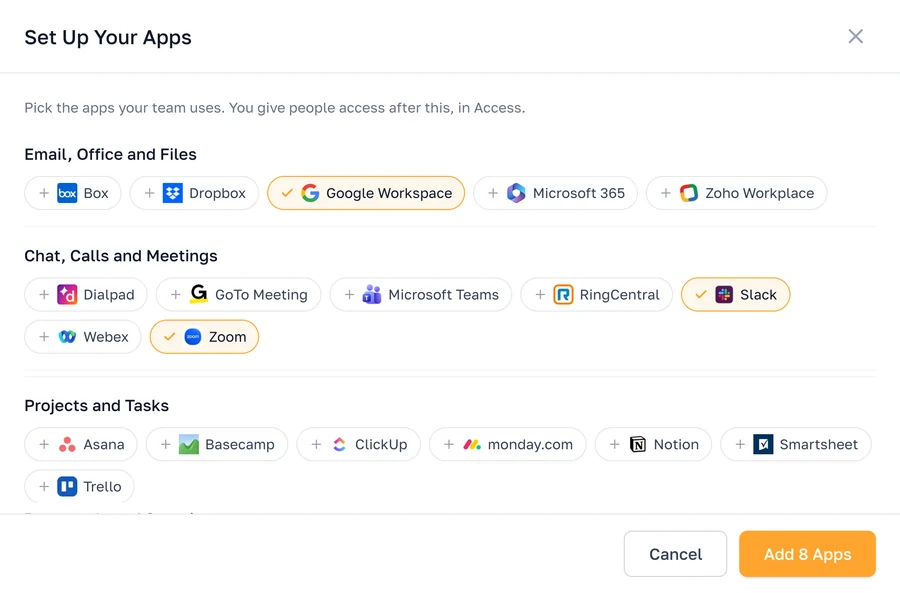
Apps is in the main menu, for HR and for every employee. The first time you open it, Set Up Your Apps lists 87 popular apps in 14 categories. Tick the ones your team uses, add your own with a name and a link, and they all land on your list at once.
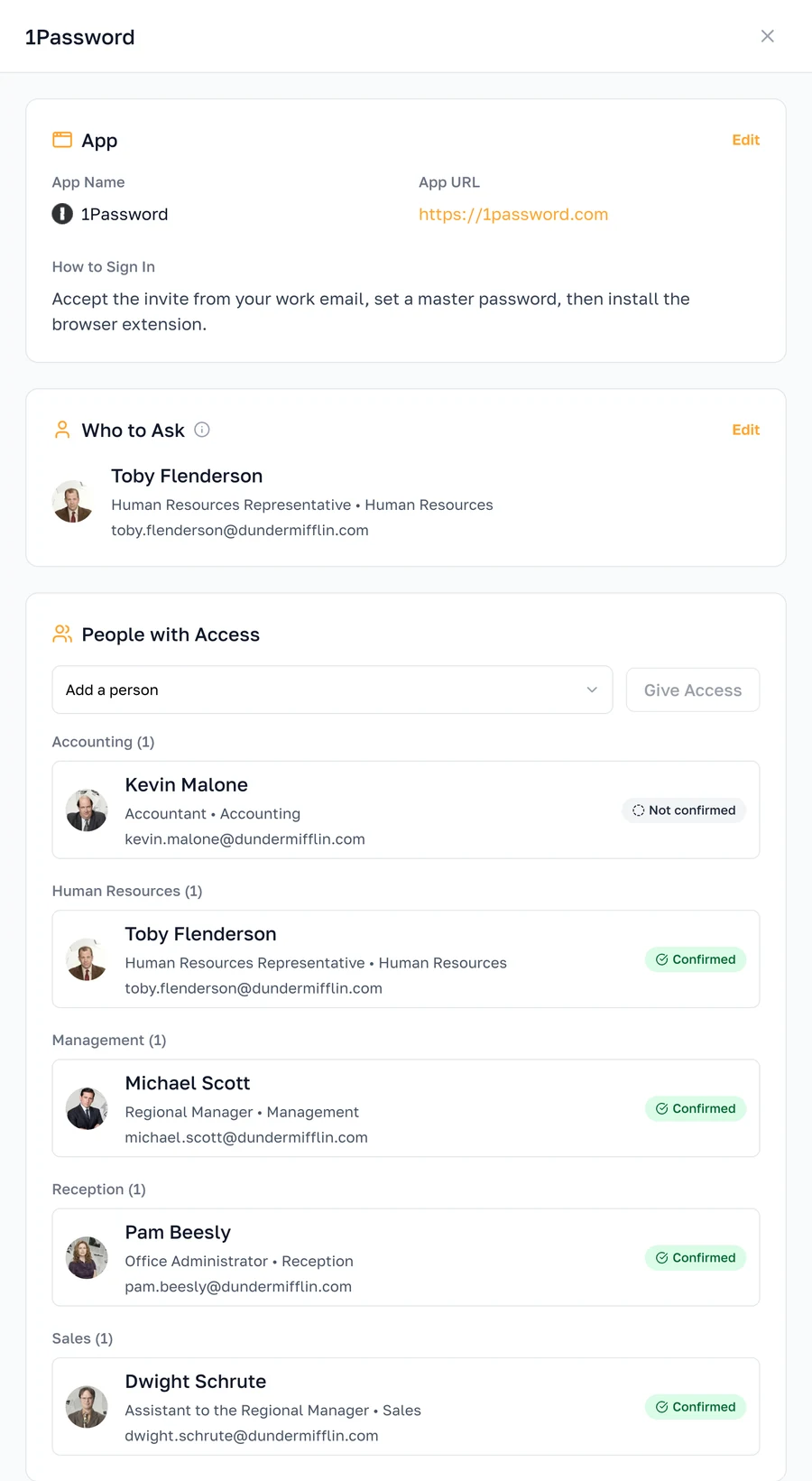
Each app on the list keeps three things:
- Its link. Where people sign in.
- How to Sign In. The steps, written once: which email to use, who sends the invite, what to set up first.
- Who to Ask. The one person employees go to with questions about that app.
When your team starts using something new, Add App puts it on the list.
Give access, and know when it works
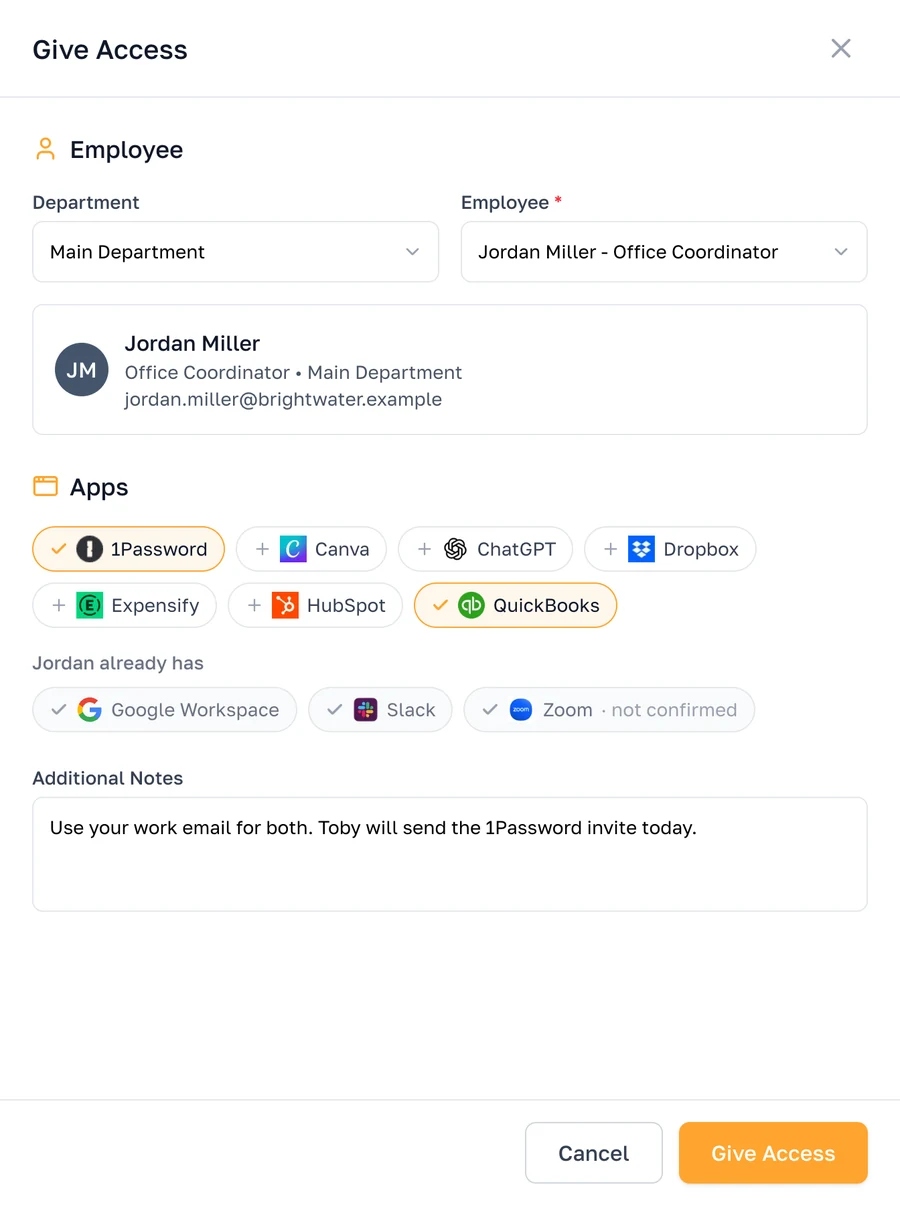
Give Access takes one person and the apps they don't have yet, with a note just for them if you like. They get an email with how to sign in, who to ask and your note. Add them in each app the way you do today: FirstHR keeps the record of who has what, and passwords stay in your password manager.
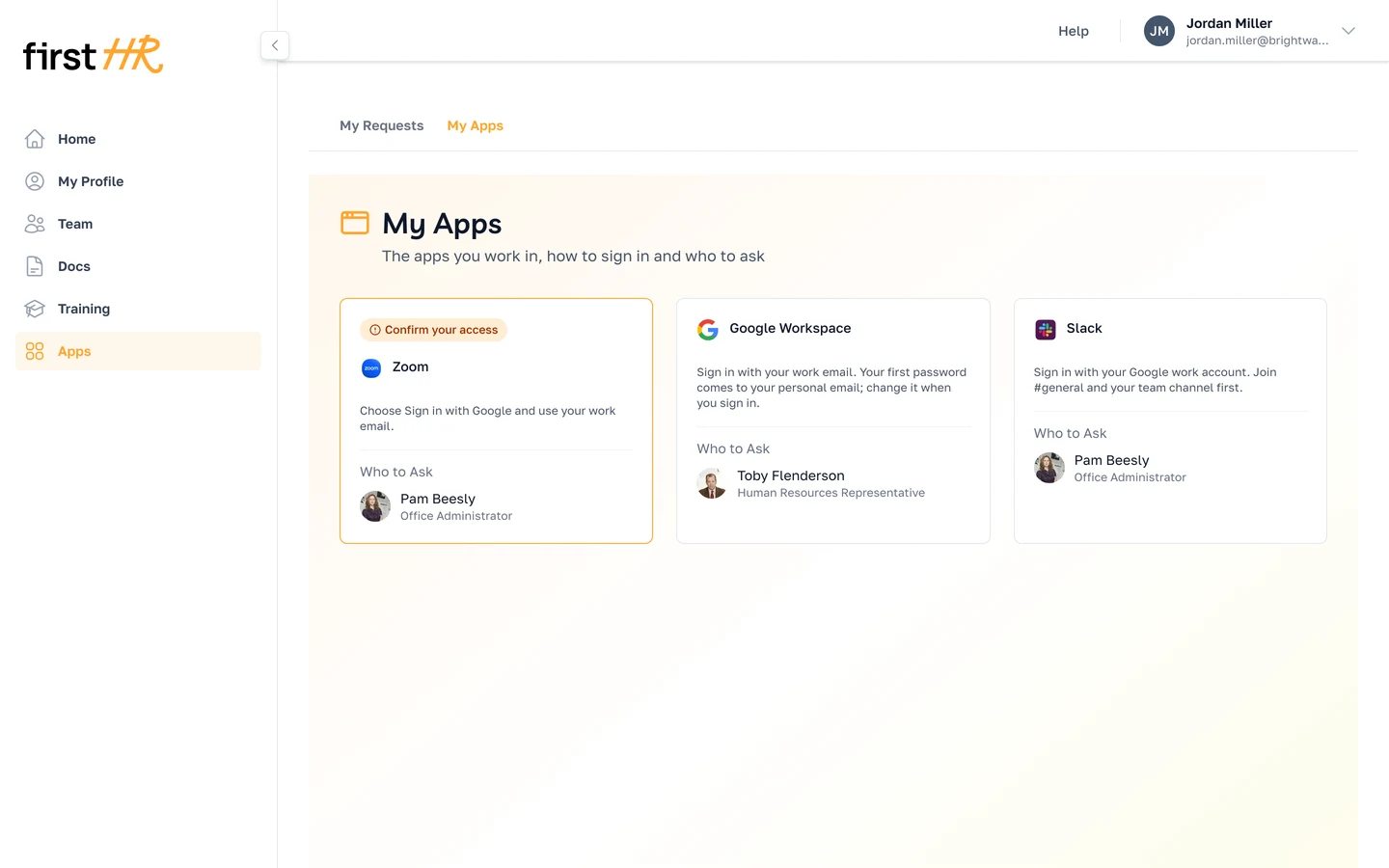
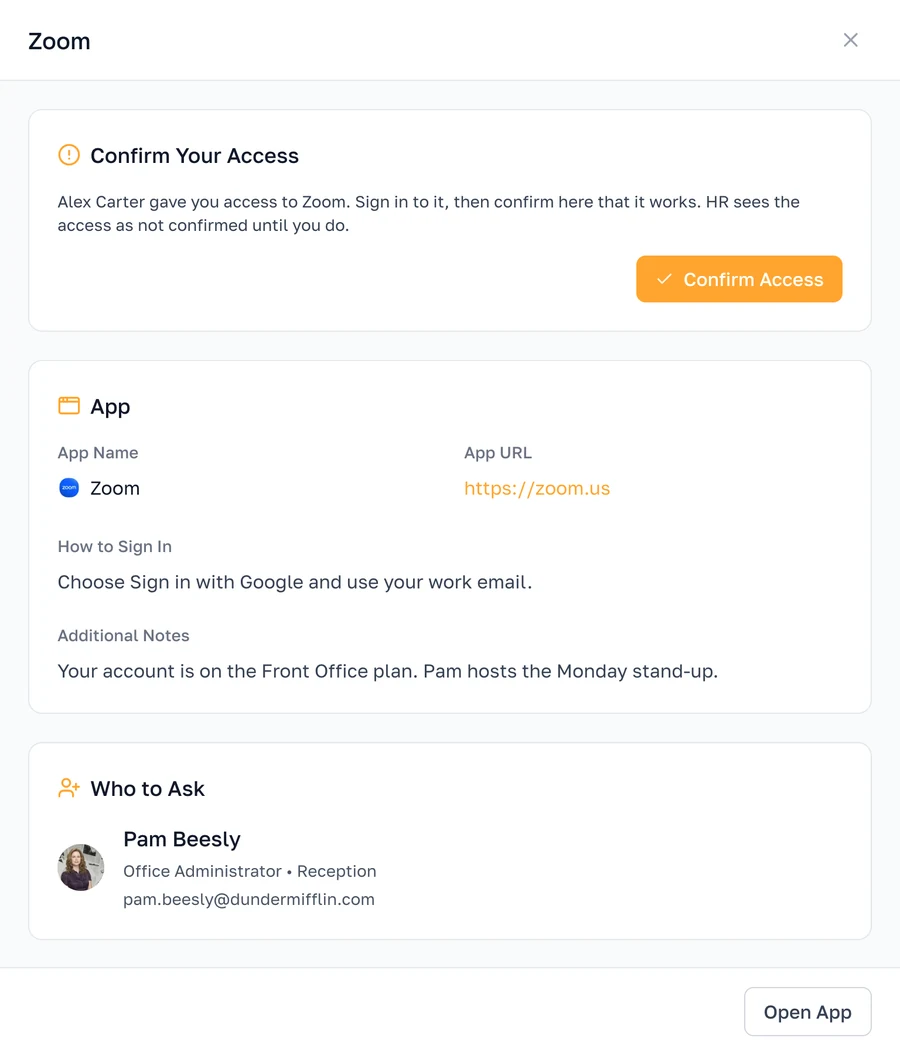
The app waits for them in My Apps, highlighted, with the link, the steps and your note. Once they can sign in, they press Confirm Access. Until then you see Not confirmed, and when they confirm, whoever gave the access gets an email.
Who has what, at a glance
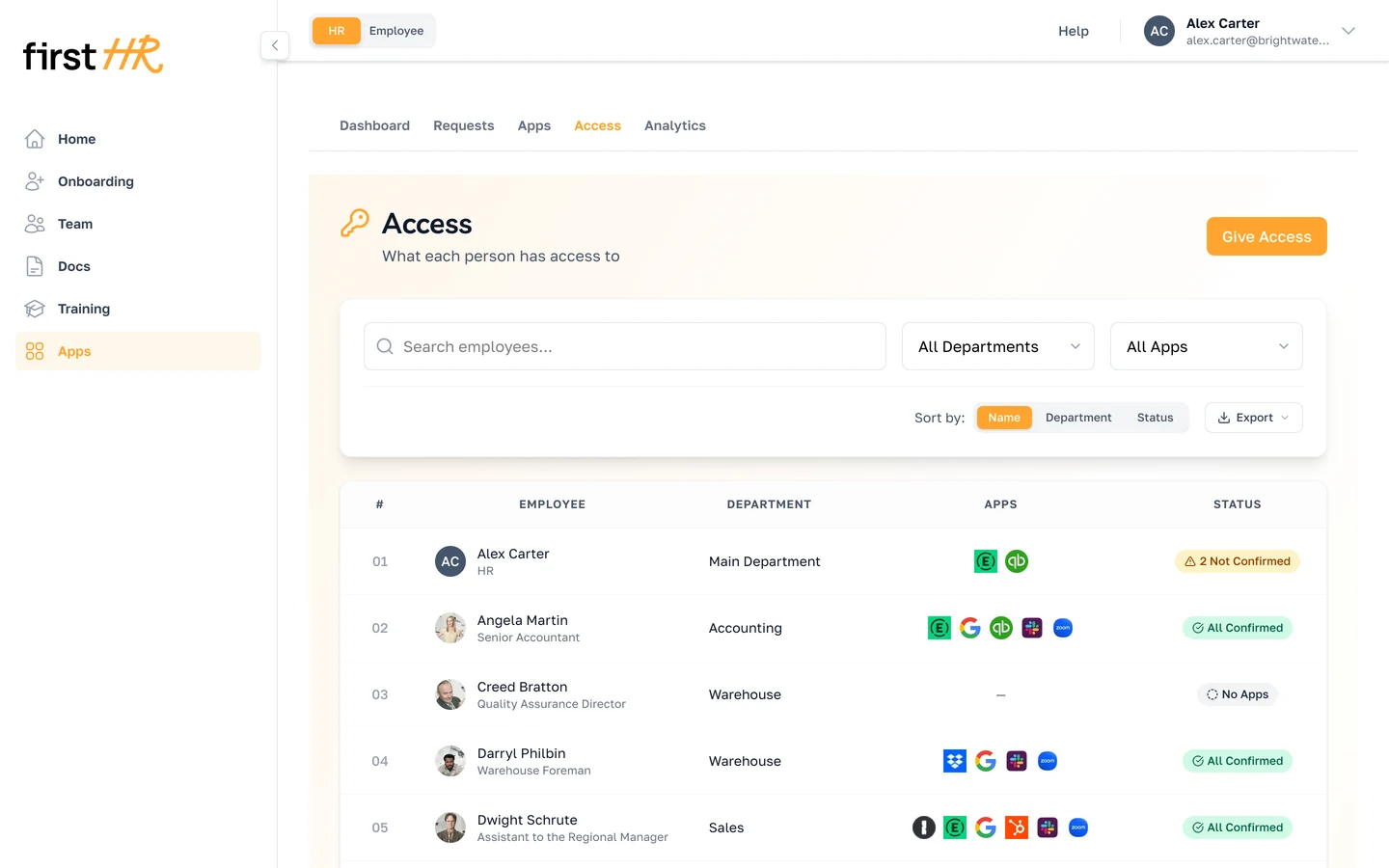
The Access tab has one row per person: the apps they have and whether they've confirmed them all. Sort by status to bring access still waiting for confirmation to the top, filter by app to see everyone who has it, and export the list to Excel or CSV.
Open a person to see each app they have, who gave it and when, and whether they confirmed it. History keeps everything that happened to their access, newest first.
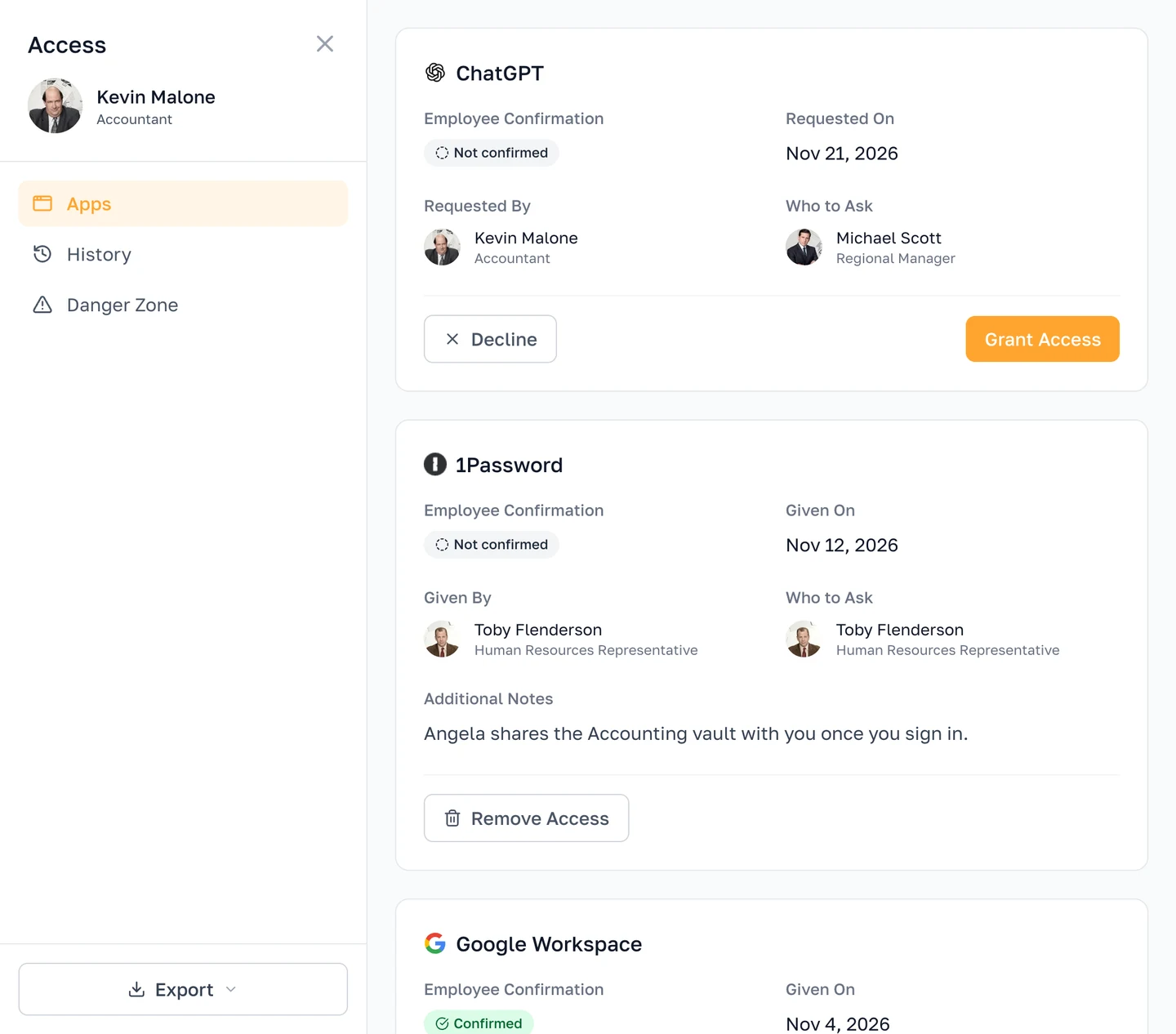
Your team asks, you answer
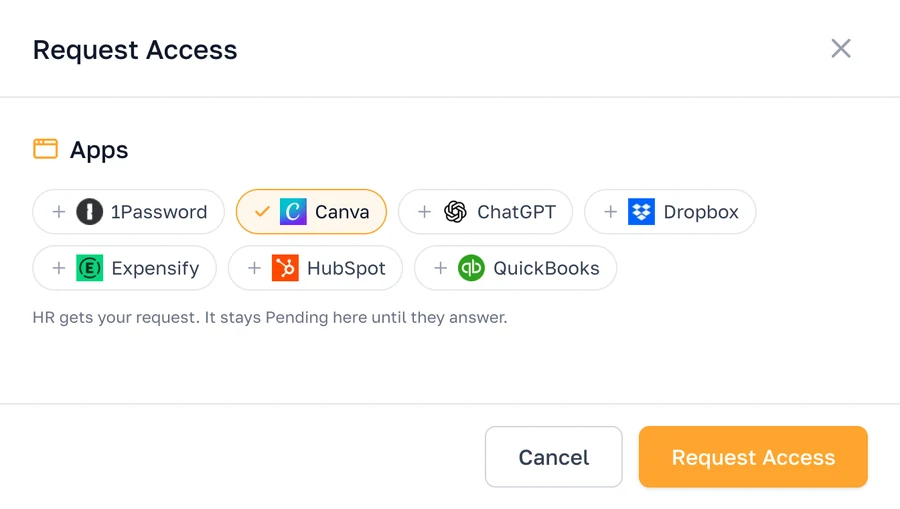
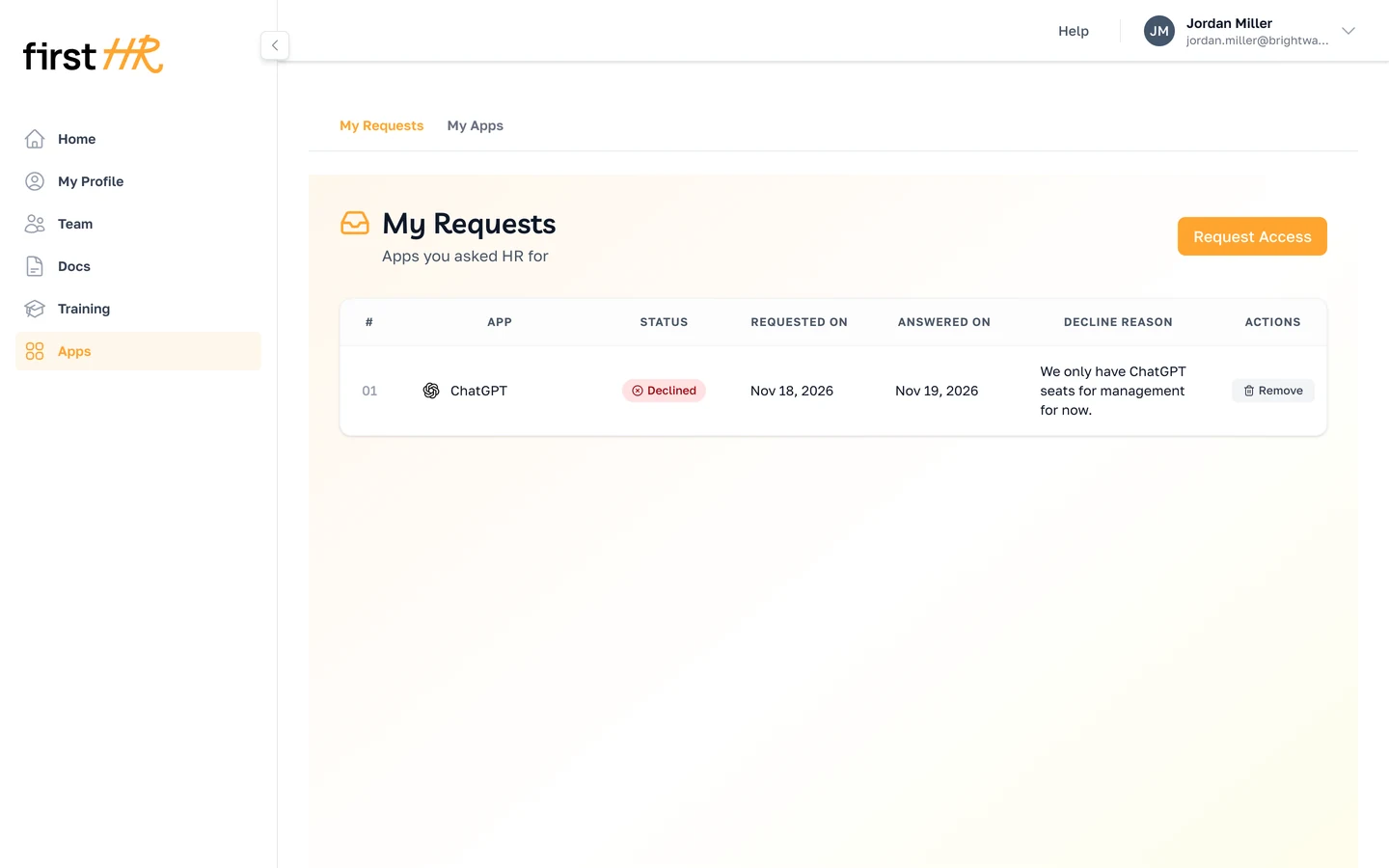
Employees ask for apps themselves. In My Requests they press Request Access and pick from the apps your company uses, and HR and the Main Admin get an email.
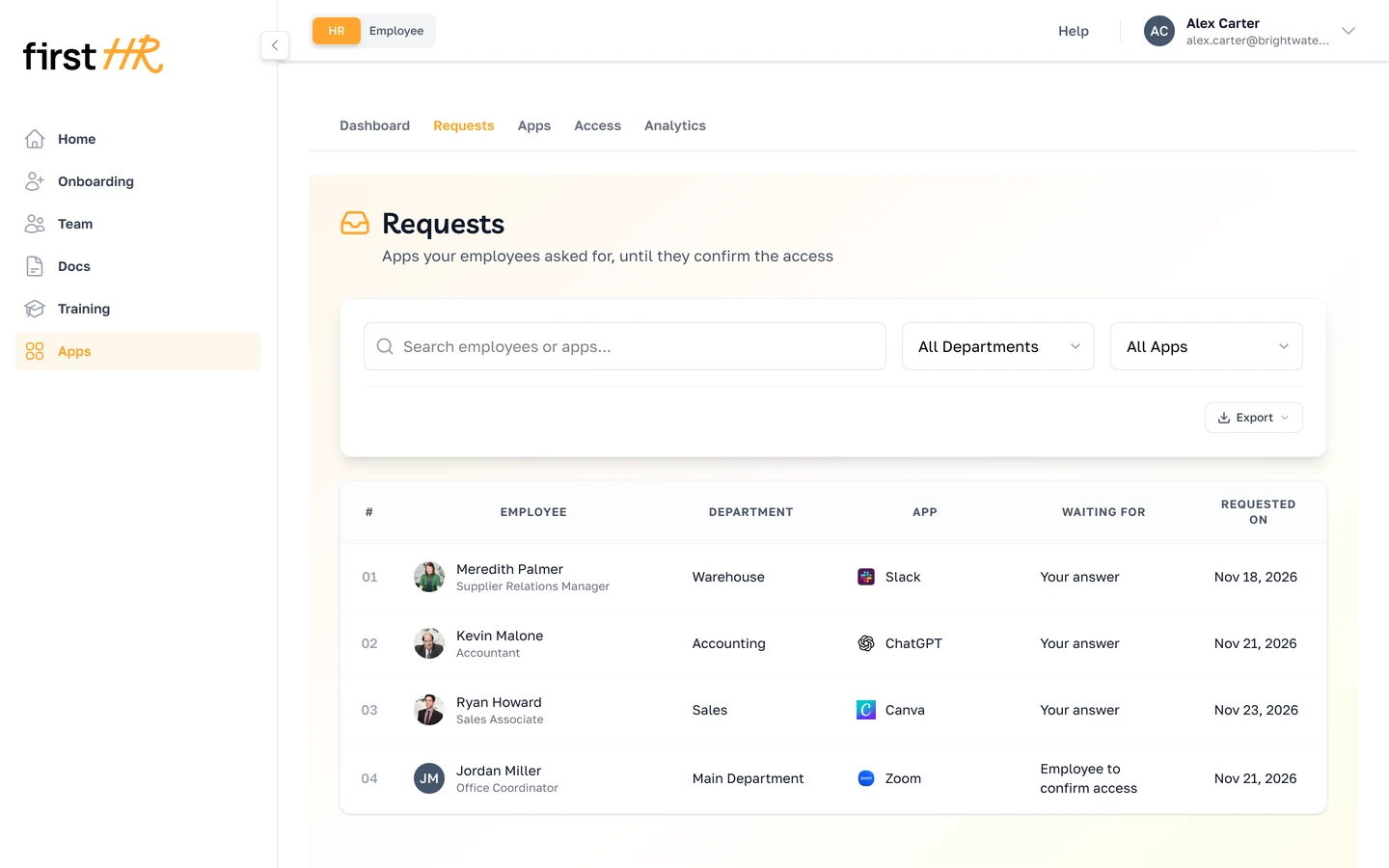
Every request waits on the Requests tab, and Waiting For tells you whose turn it is: yours, or the employee's to confirm the access you granted. A request stays there until it's confirmed, so nothing slips away.
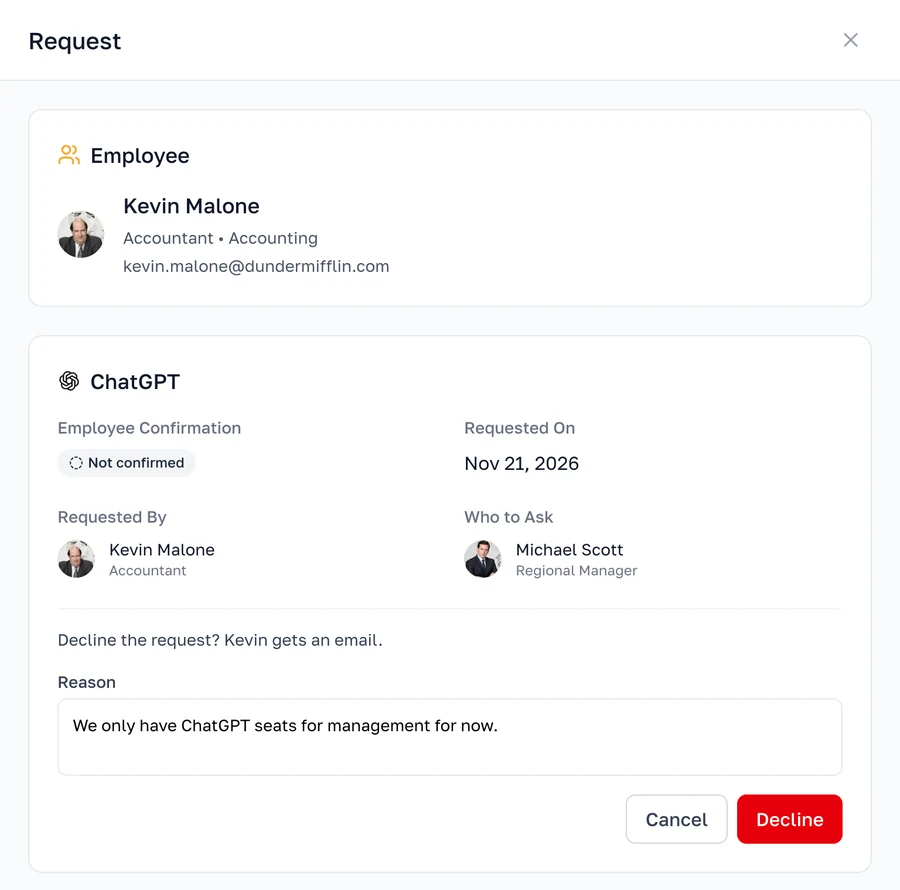
Grant Access sends them the sign-in steps, like any access you give. Or decline, with a short reason if you like: they get it by email and see it in My Requests. A granted app moves to My Apps, ready for them to confirm.
Nothing left open when someone leaves
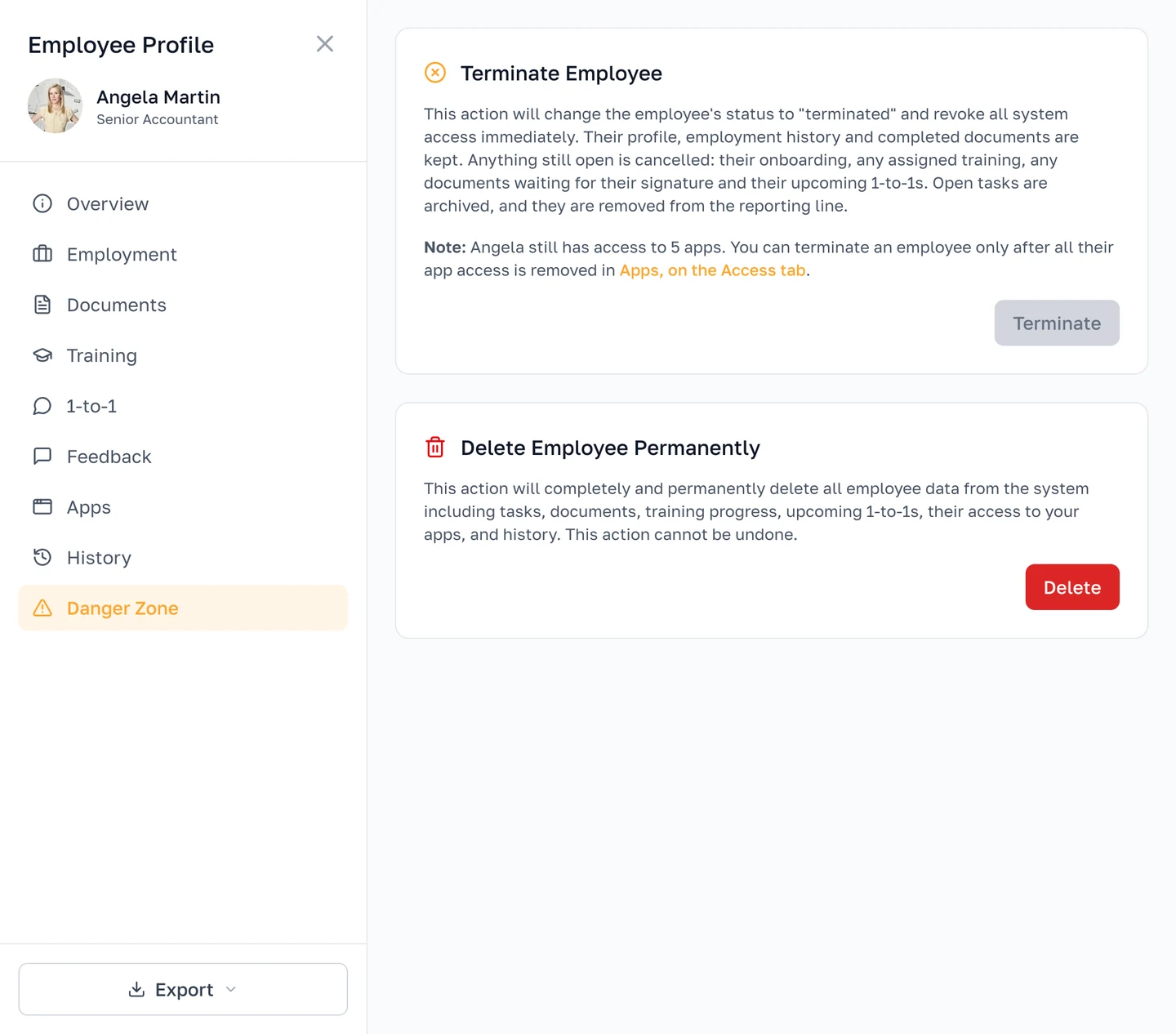
Terminate now stays off while the person still has access to any app. The note under the button says why and links straight to their window in Access.
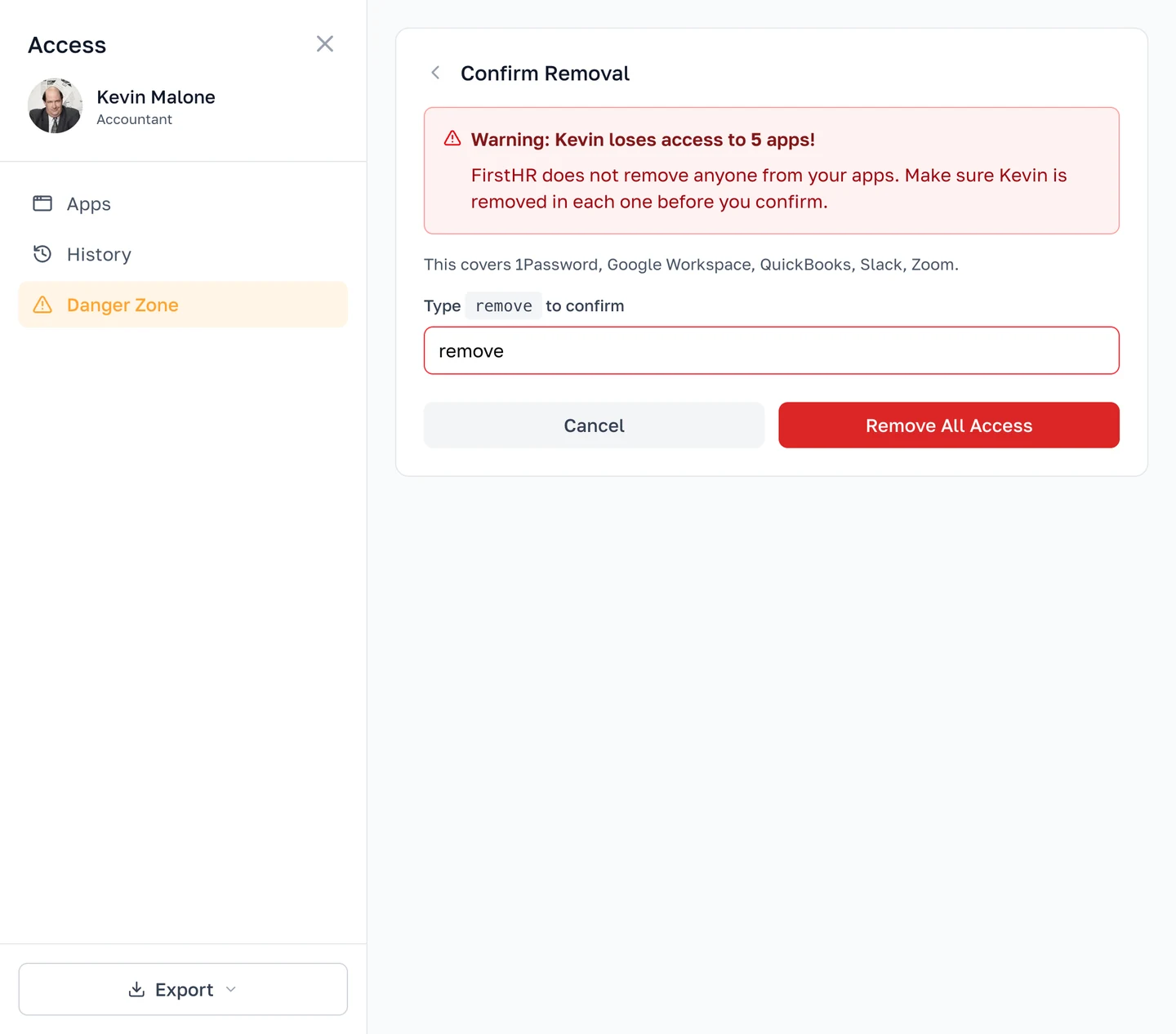
Remove them in each app, then press Remove All Access in their window: it marks everything removed at once, and History keeps who removed each app and when. After that, Terminate works as before.
An app in every onboarding
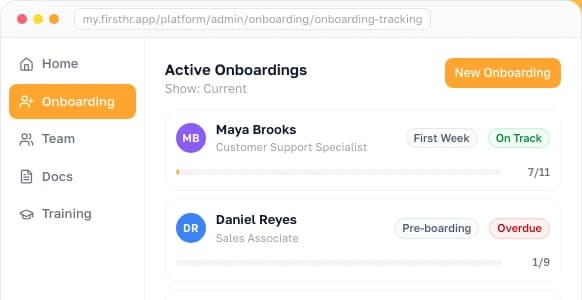
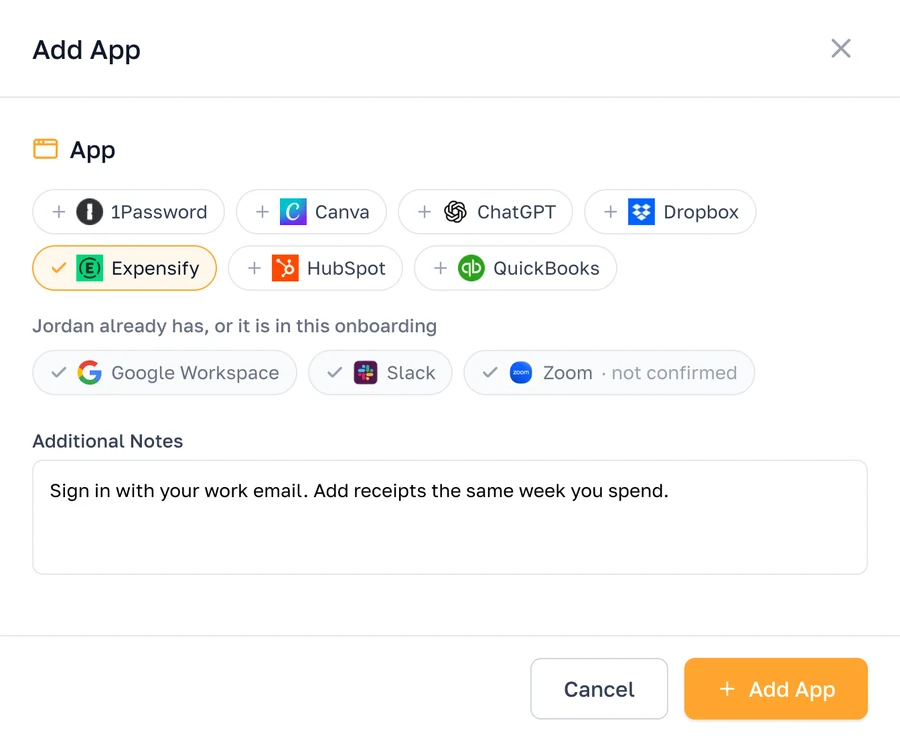
Each phase of the Onboarding Wizard now has one Add Item button with five kinds of items: Task, Document, Training, 1-to-1 and App. Pick one of your company's apps and add a note for the new hire. When you start the onboarding, the access is recorded as given and waits for them.
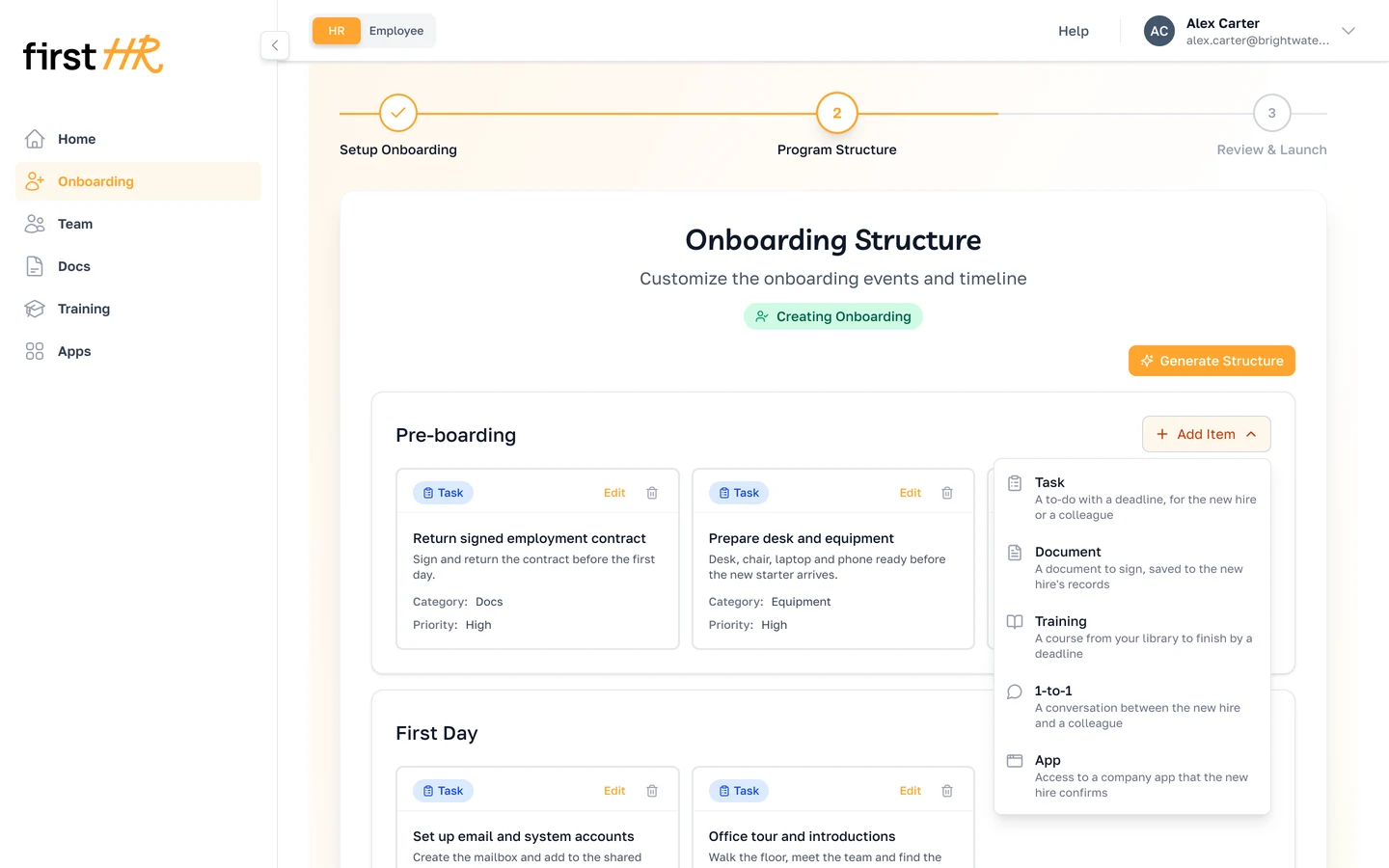
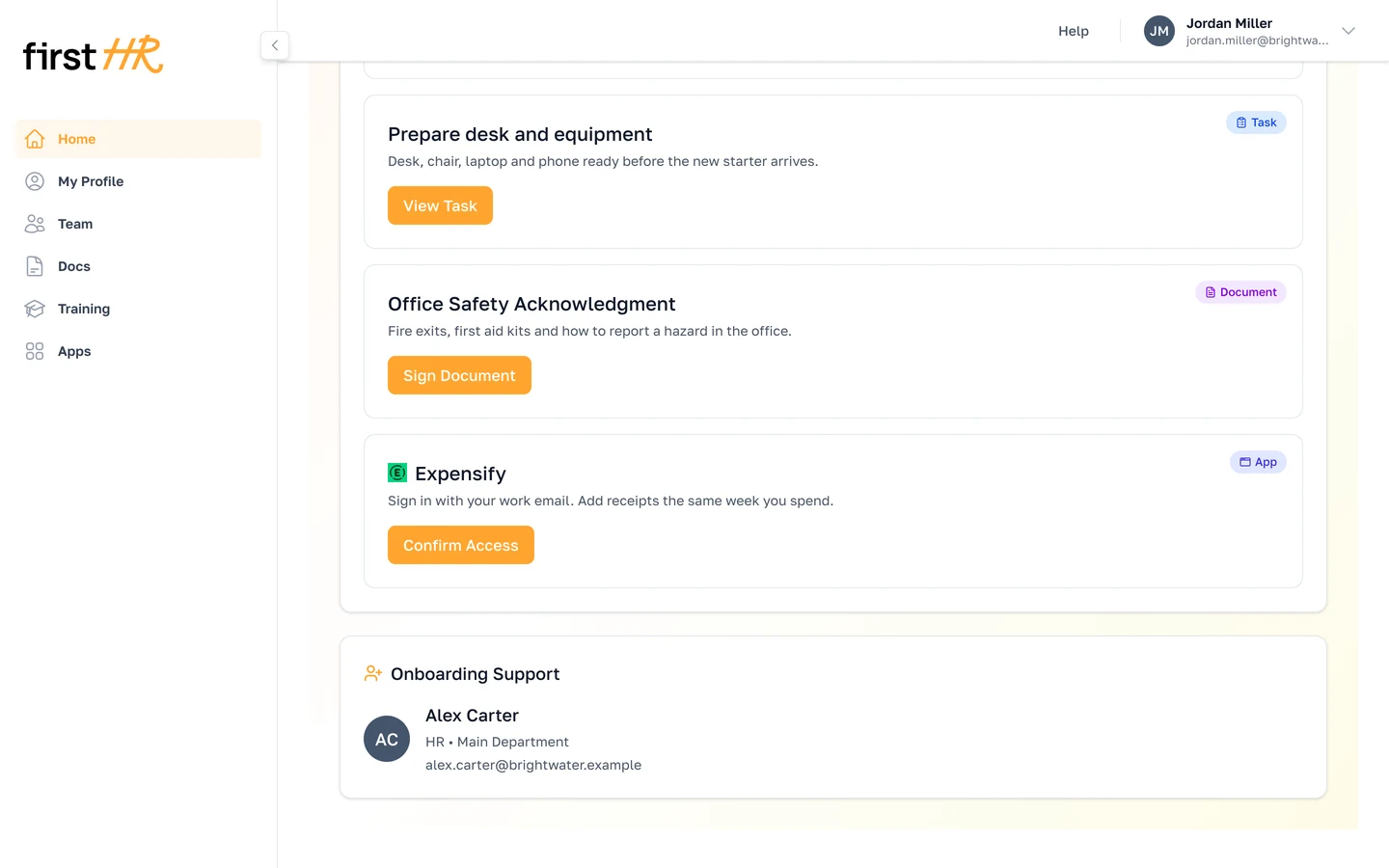
The new hire sees the app in their onboarding, with how to sign in, and confirms it right there. The item is done once they do. Templates hold apps too, so everyone hired into a role gets the same ones.
Dashboard and Analytics
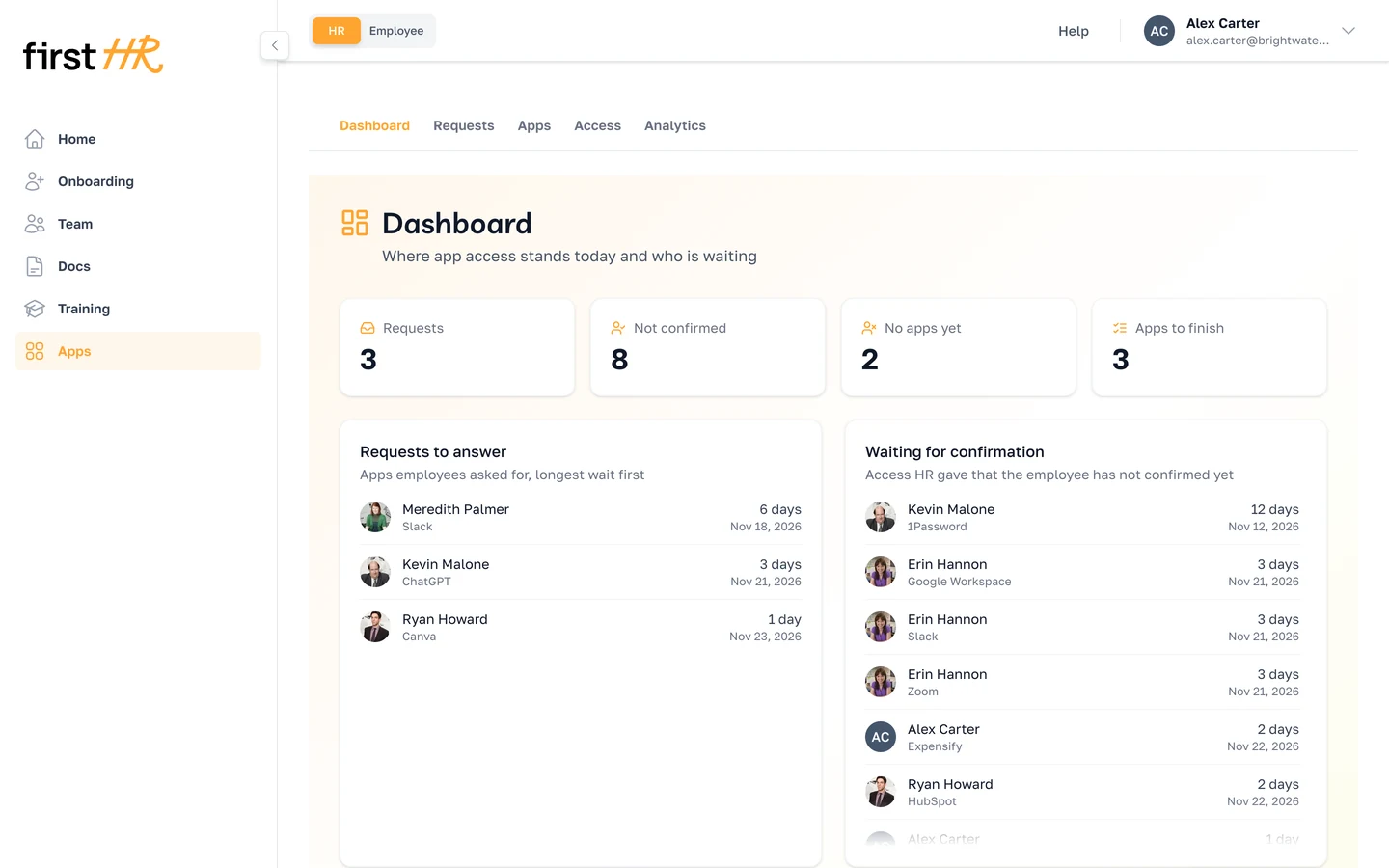
The Apps Dashboard shows where things stand today: requests to answer, access waiting for confirmation, people with no apps yet and apps that still need sign-in steps or someone to ask. Analytics covers 3, 6 or 12 months: access given and removed by month, how fast requests were answered and access confirmed, the apps people ask for most and the most popular ones.
Home shows it too: HR sees the app requests waiting for them, and each employee sees the apps waiting for their confirmation. A person's profile in My Team has an Apps tab with everything they have.
Try it with your team
Apps comes with every plan, the free trial included. You'll find it in the main menu, in your portal and in every employee's.
Start with Set Up Your Apps, then write the sign-in steps for the few apps every new hire needs on day one. The next person you hire gets them by email before they ask, and the next time someone leaves, you'll know exactly what to close.