Introducing Feedback: a direct line to HR
A new section in FirstHR: employees write to HR from their portal, named or anonymously. You respond, resolve and see how each answer was rated.

FirstHR has a new section: Feedback. It's one place where anyone on your team can write to HR, with their name or without it, and where HR sees all of it in one list and can respond.
We built it because on a small team, people don't always say what's wrong out loud, and a problem nobody mentions tends to grow.
Your team writes to HR from their own portal
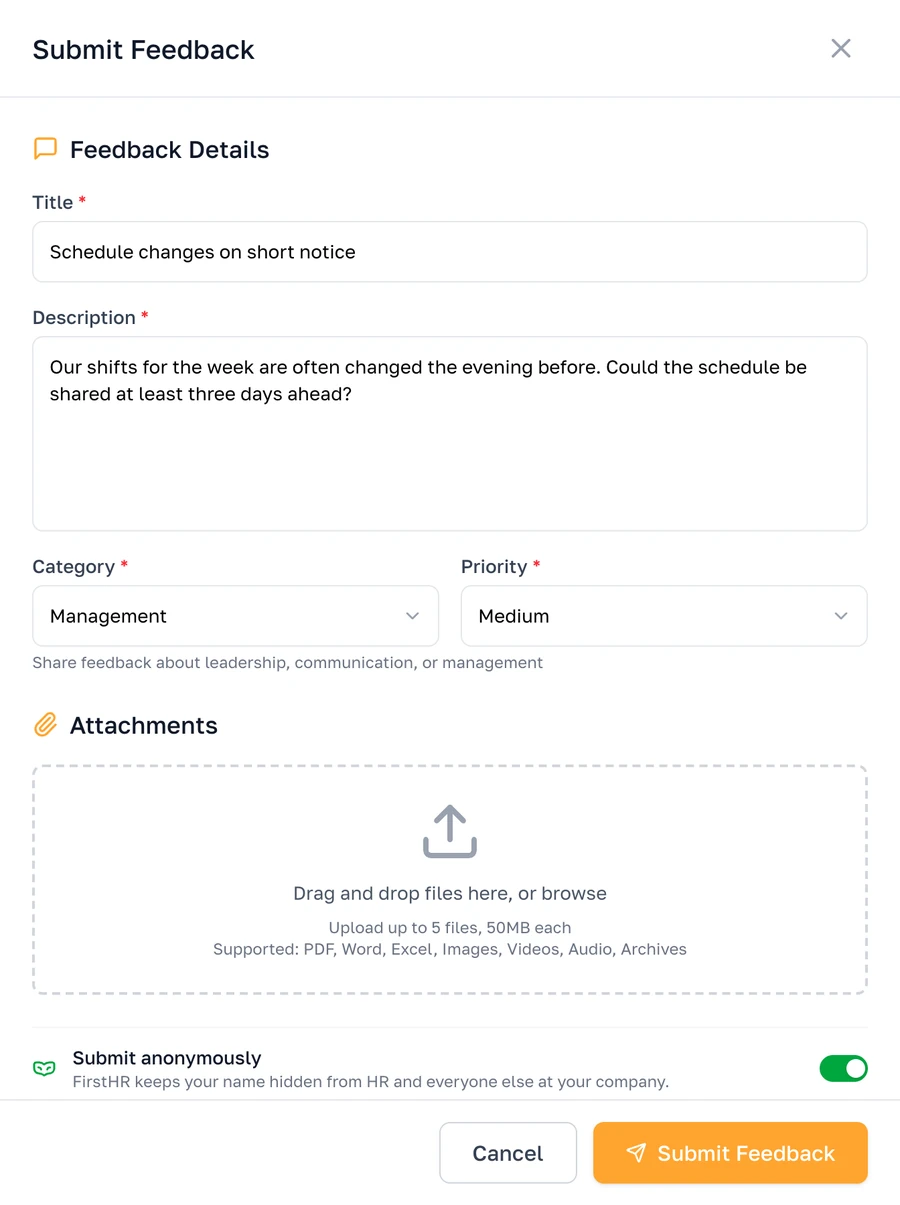
Every employee now has Feedback under Team in their portal. Submit Feedback opens a short form: a title, a description, a category and a priority, with a photo or a file if it helps.
- Ten categories. From General and Suggestion to Pay, Safety, Harassment and Misconduct, each with a line on what belongs there.
- A priority they set themselves. Urgent, High, Medium or Low.
- Up to five files. A photo, a screenshot or a document goes along with the feedback.
With a name or without one
Some things are hard to put your name on. With Submit anonymously switched on, FirstHR keeps the sender's name hidden from HR and everyone else at your company. HR and admins see Anonymous instead of a name, and there's no name in the email HR gets. The employee still reads HR's responses in their portal.
HR gets one list, and sees who is still waiting
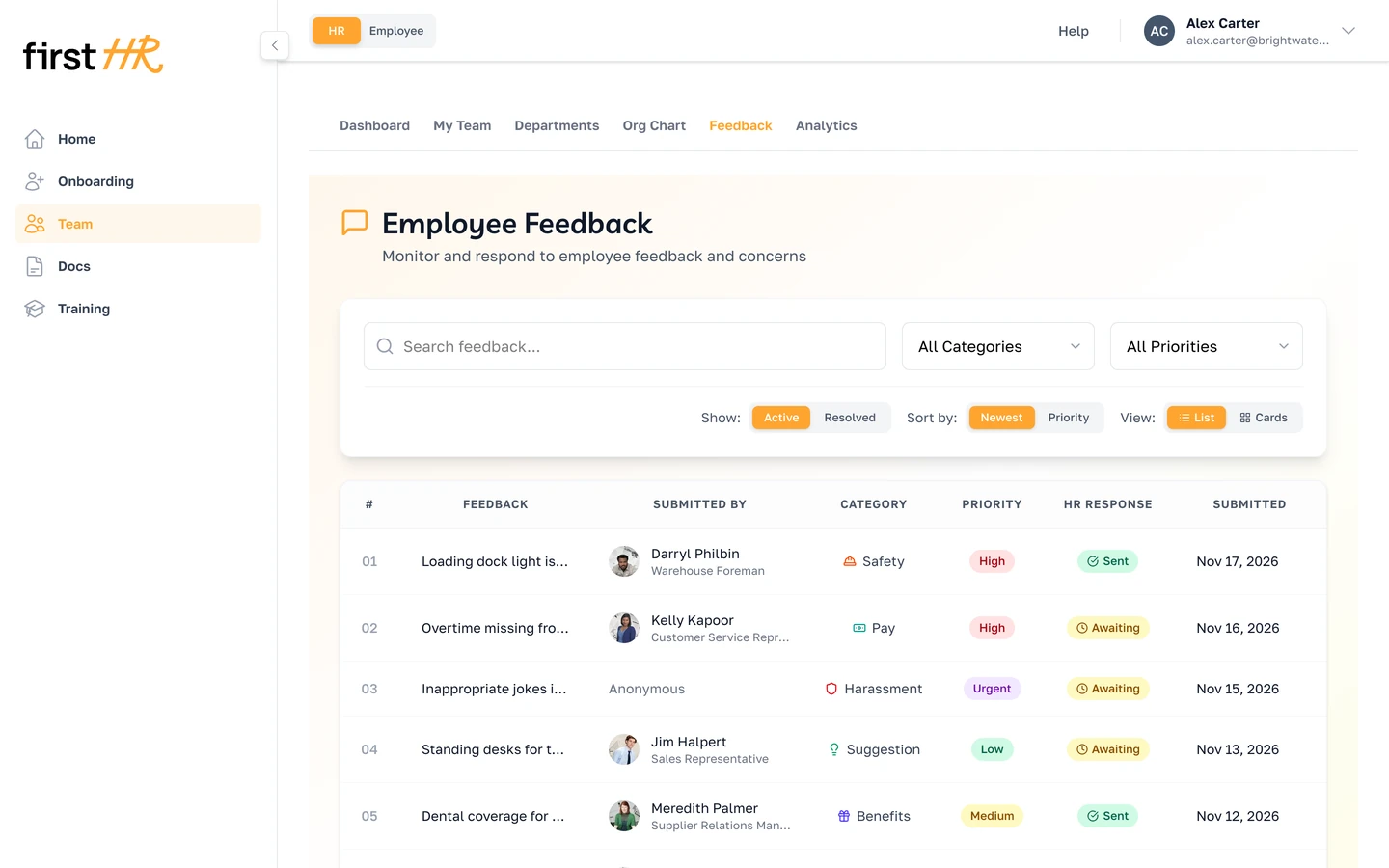
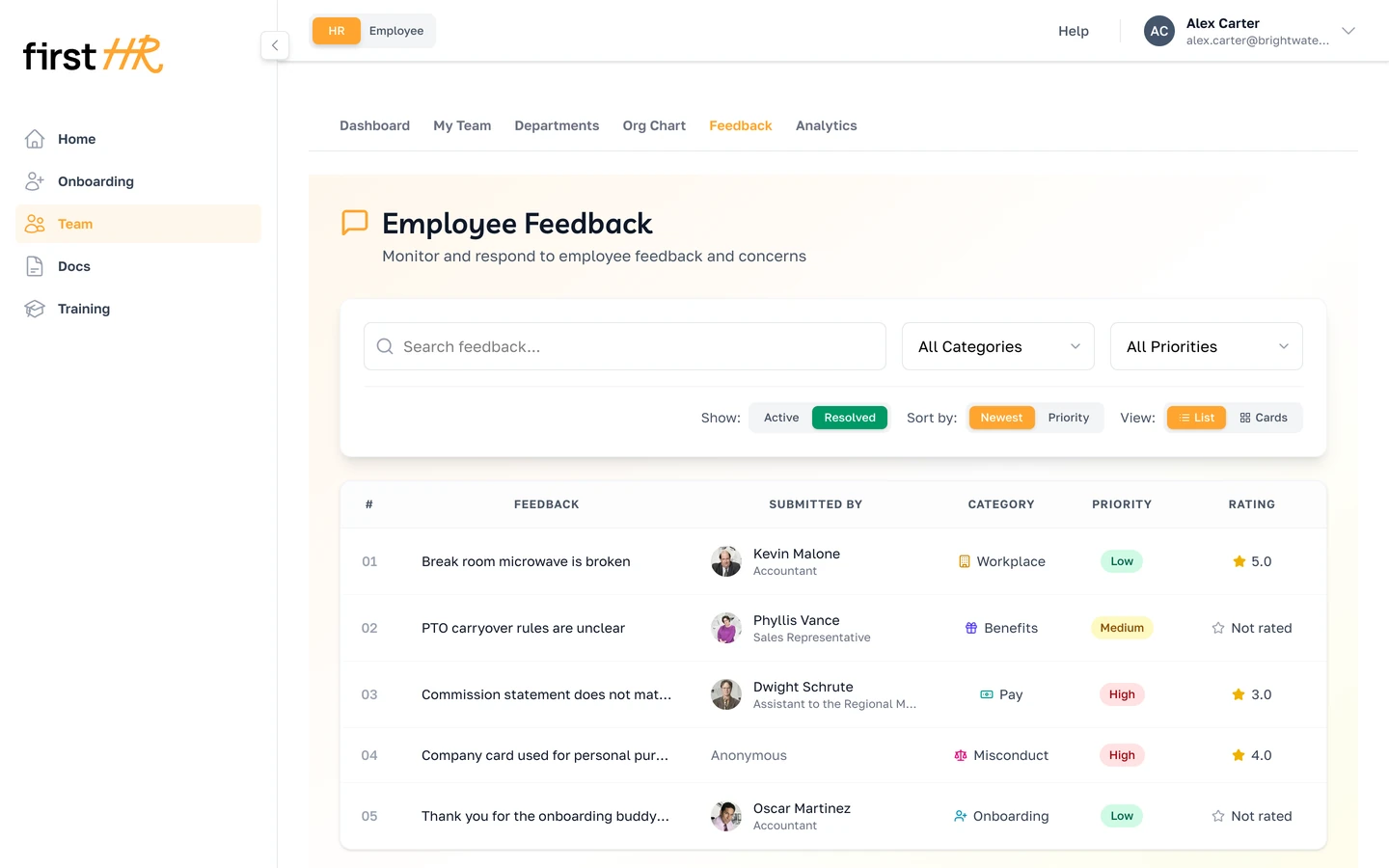
Everything lands in Feedback, under Team, and HR and the Main Admin get an email each time. The list shows each one's category and priority, and HR Response says Awaiting until someone responds. You can search by title, text or name and filter by category or priority. HR and the Main Admin see all of it, and each employee sees only their own.
Respond, then resolve
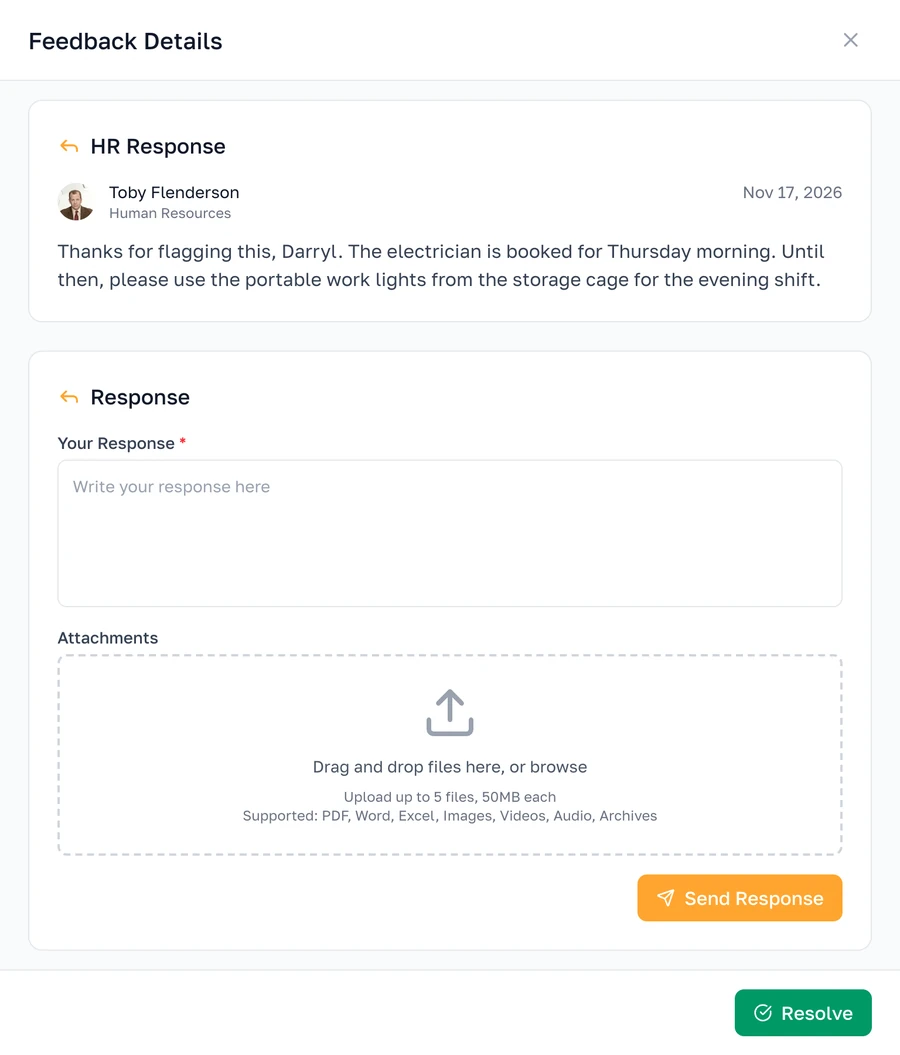
Respond as many times as you need. A response doesn't close the feedback, so you can write again when you know more, and the employee reads every response in their portal. When it's dealt with, Resolve closes it and moves it to its own list.
See how it was rated
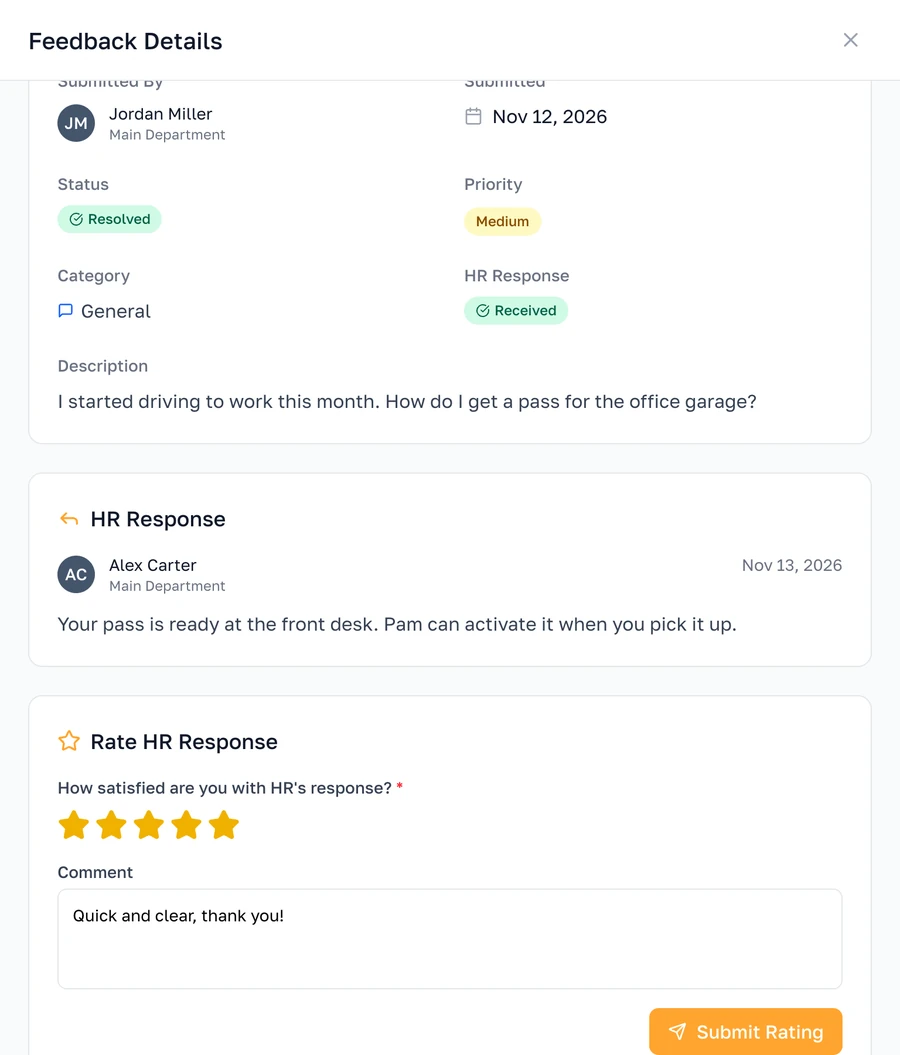
Once feedback is resolved, the employee can rate how it was handled, from one to five stars, with a comment if they like. You get an email with the rating and their comment, and the Resolved list shows every rating.
A question at the end of every onboarding
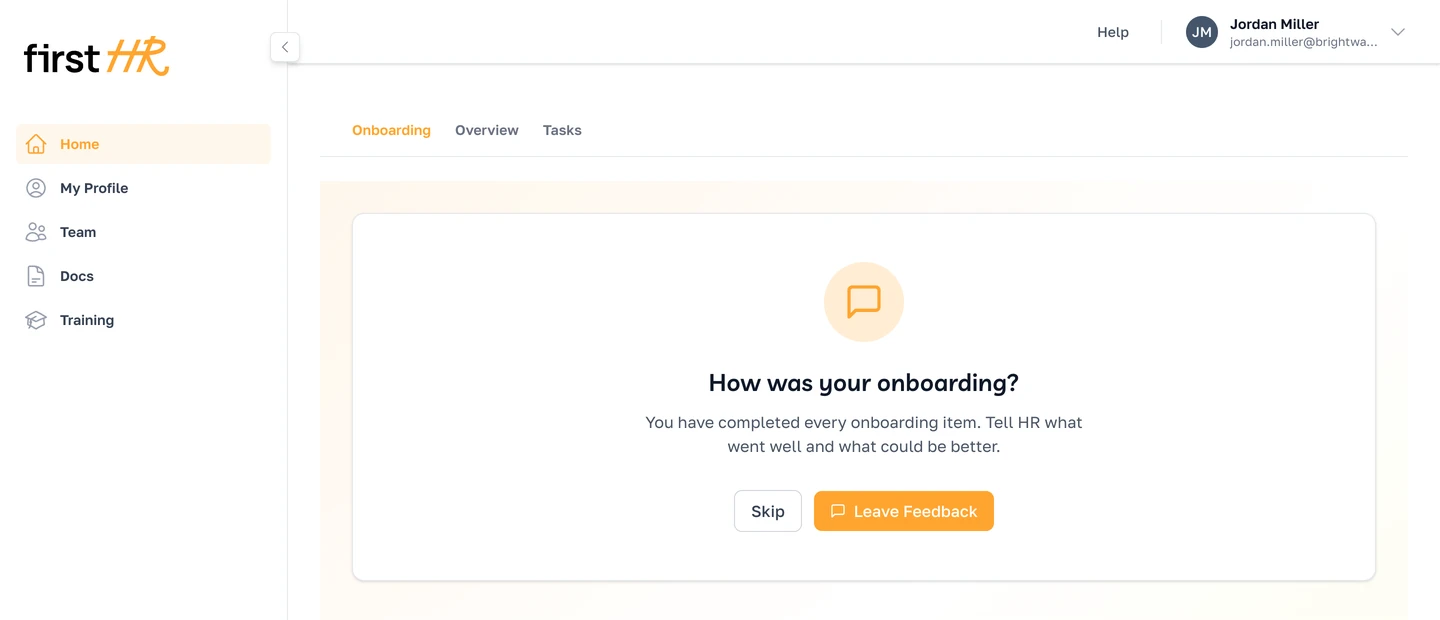
When a new hire finishes the last item of their onboarding, FirstHR now asks them: How was your onboarding? Leave Feedback opens the same form with the Onboarding category already picked, and their answer comes to HR like any other feedback. The Category filter shows all of them together.
Try it with your team
Feedback comes with every plan, the free trial included. You'll find it under Team in your HR portal, and your employees will find it under Team in theirs.
Let your team know it's there. The sooner people have a place to tell you what's on their mind, the sooner you hear about it, and the easier it is to fix.