
Introducing Feedback, 1-to-1s and Calendar
New in FirstHR: Feedback, a direct line from your team to HR; 1-to-1s with a plan and a summary; and a calendar with every 1-to-1 and your team's dates.

FirstHR has three new things: Feedback, 1-to-1s and Calendar. Feedback is one place where anyone on your team can write to HR, with their name or without it, and HR sees all of it in one list. With 1-to-1s, anyone can schedule a conversation with a colleague, say what it's about and keep a summary of what you agreed on. Calendar puts every planned 1-to-1 next to the dates that matter to your team.
We built them because on a small team, people don't always say what's wrong out loud, and a problem nobody mentions tends to grow. And the most useful conversations happen in passing: they rarely get a plan, and a few weeks later nobody remembers what was agreed.
Feedback: a direct line to HR
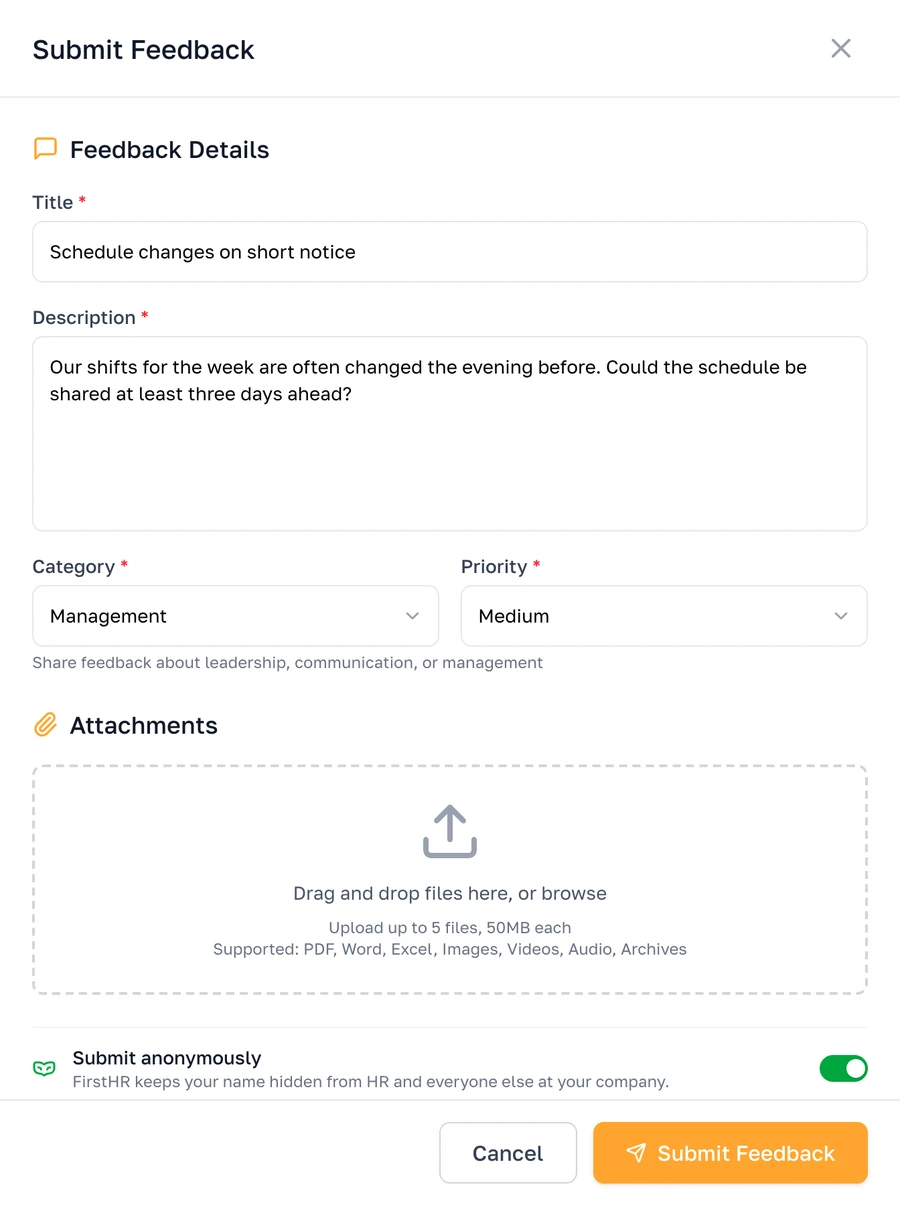
Every employee now has Feedback under Team in their portal. Submit Feedback opens a short form: a title, a description, a category and a priority, with a photo or a file if it helps.
- Ten categories. From General and Suggestion to Pay, Safety, Harassment and Misconduct, each with a line on what belongs there.
- A priority they set themselves. Urgent, High, Medium or Low.
- Up to five files. A photo, a screenshot or a document goes along with the feedback.
With a name or without one
Some things are hard to put your name on. With Submit anonymously switched on, FirstHR keeps the sender's name hidden from HR and everyone else at your company. HR and admins see Anonymous instead of a name, and there's no name in the email HR gets. The employee still reads HR's responses in their portal.
HR gets one list, and sees who is still waiting
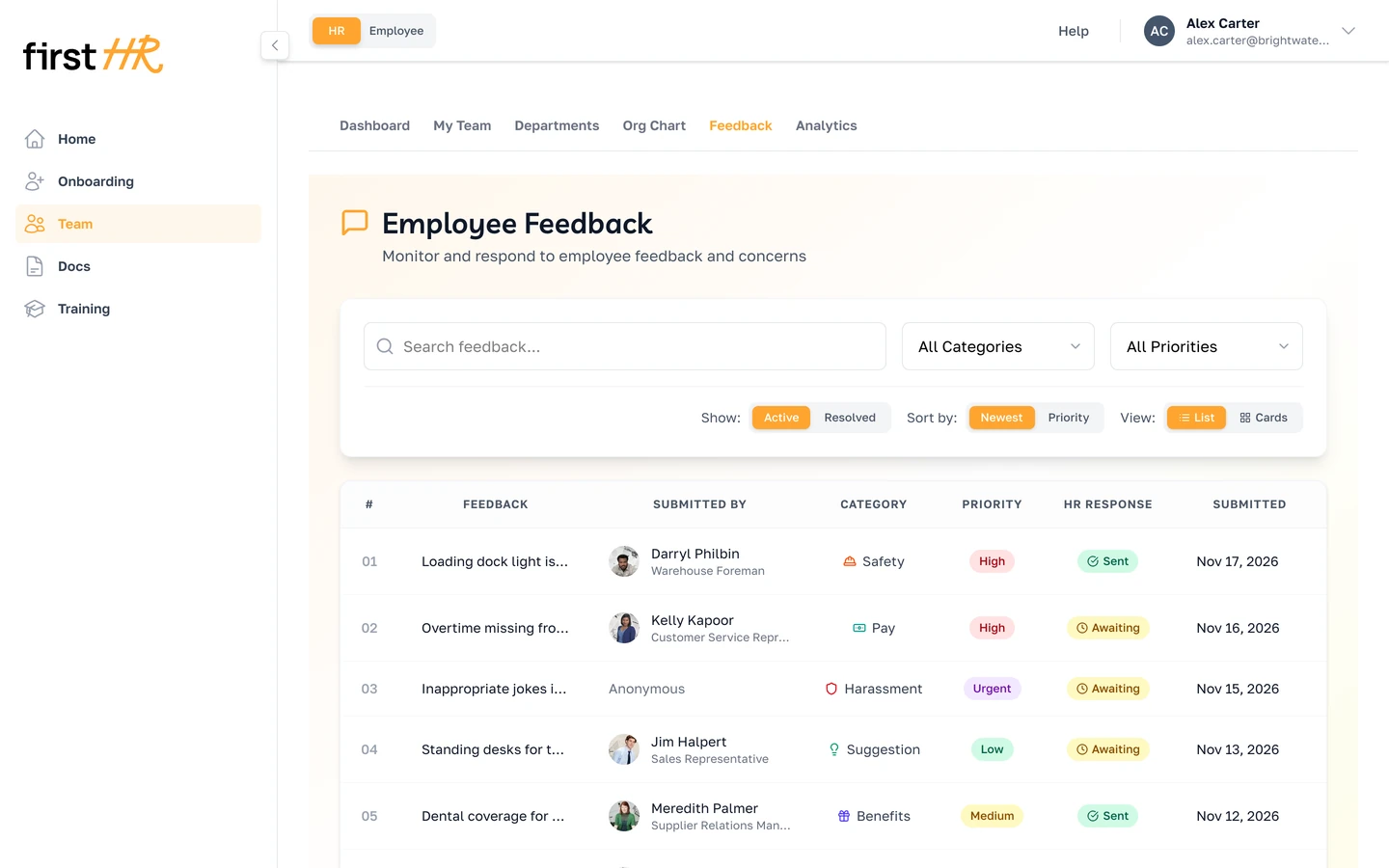
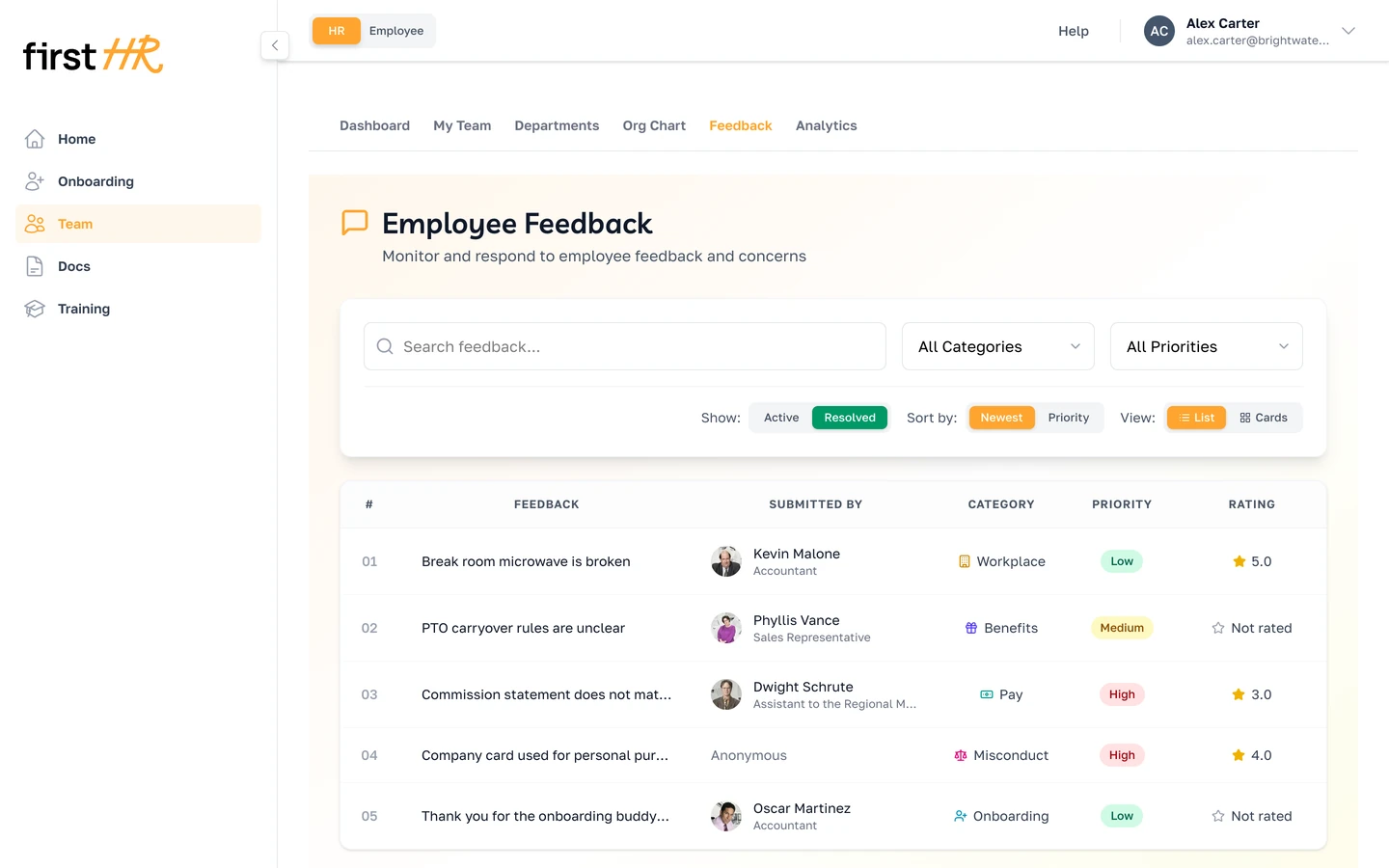
Everything lands in Feedback, under Team, and HR and the Main Admin get an email each time. The list shows each one's category and priority, and HR Response says Awaiting until someone responds. You can search by title, text or name and filter by category or priority. HR and the Main Admin see all of it, and each employee sees only their own.
Respond, then resolve
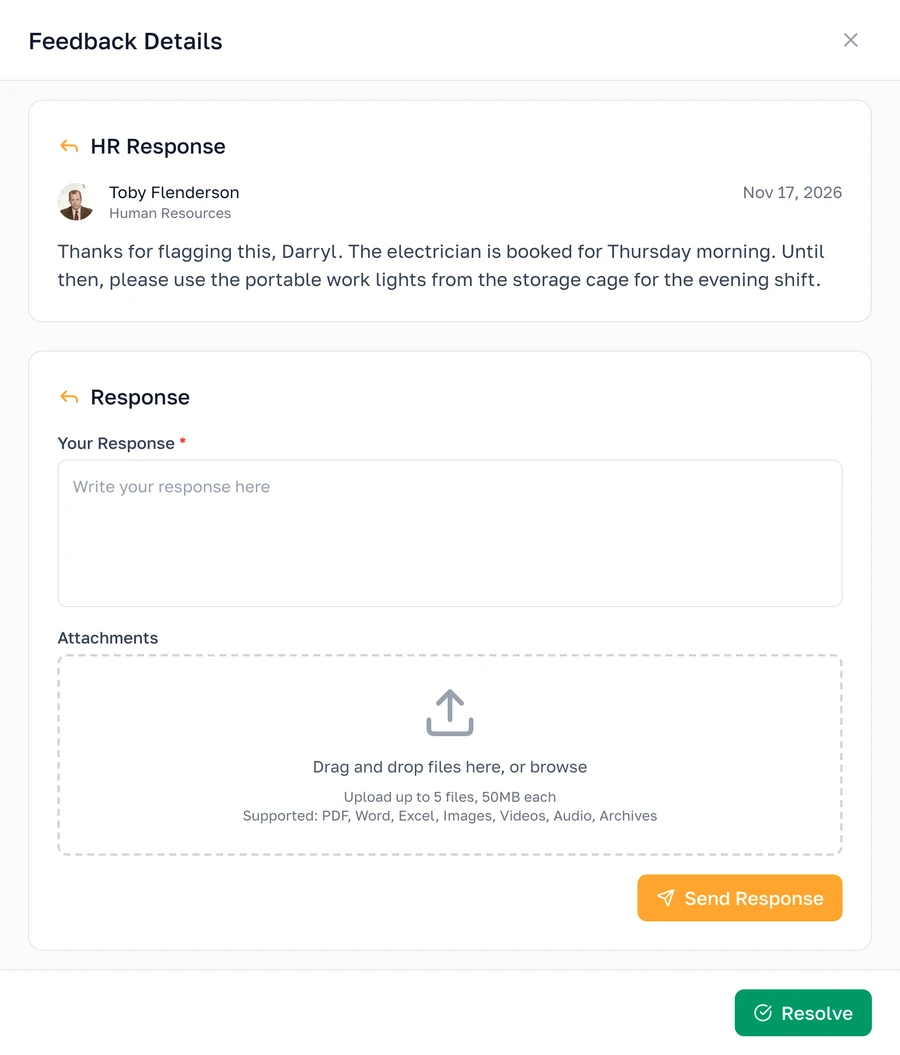
Respond as many times as you need. A response doesn't close the feedback, so you can write again when you know more, and the employee reads every response in their portal. When it's dealt with, Resolve closes it and moves it to its own list.
See how it was rated
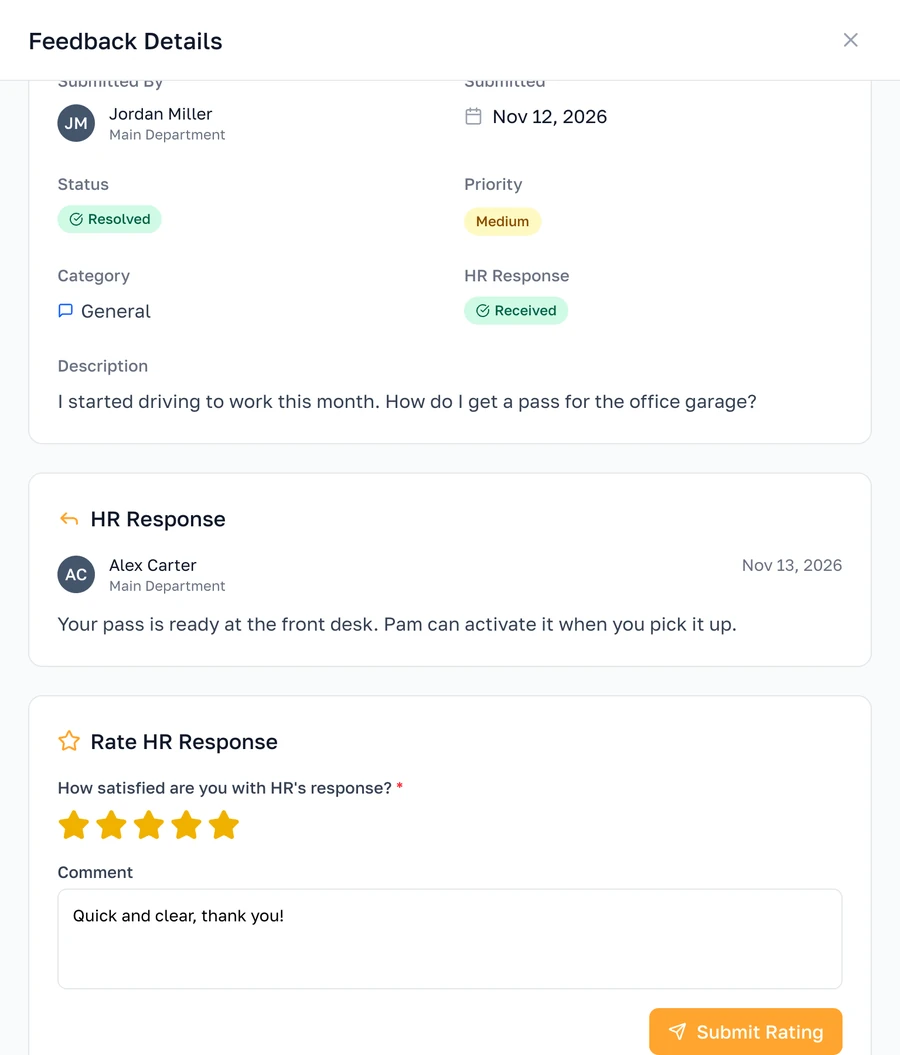
Once feedback is resolved, the employee can rate how it was handled, from one to five stars, with a comment if they like. You get an email with the rating and their comment, and the Resolved list shows every rating.
A question at the end of every onboarding
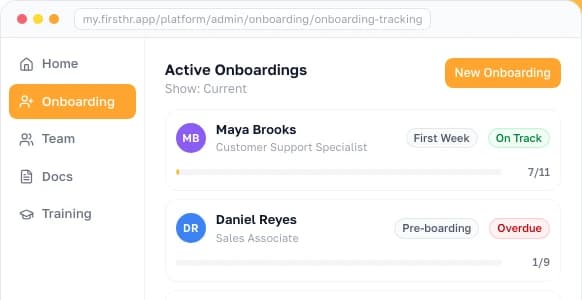
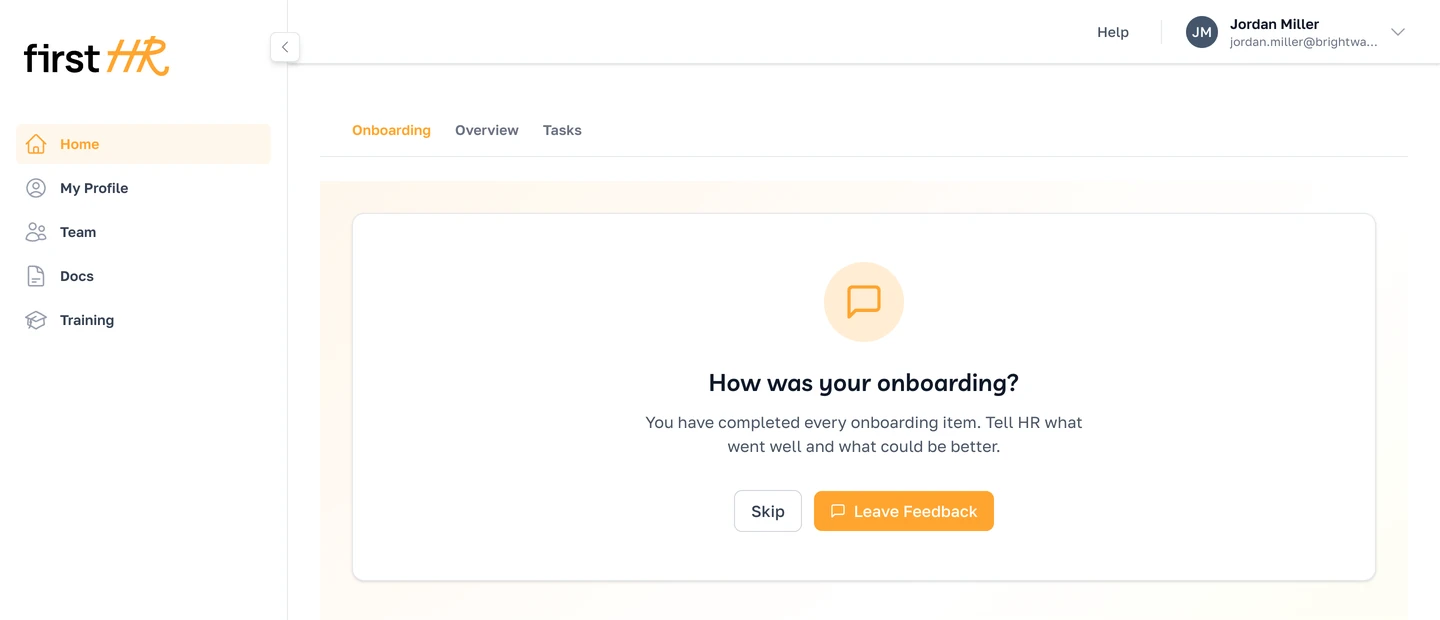
When a new hire finishes the last item of their onboarding, FirstHR now asks them: How was your onboarding? Leave Feedback opens the same form with the Onboarding category already picked, and their answer comes to HR like any other feedback. The Category filter shows all of them together.
1-to-1s with a plan and a summary
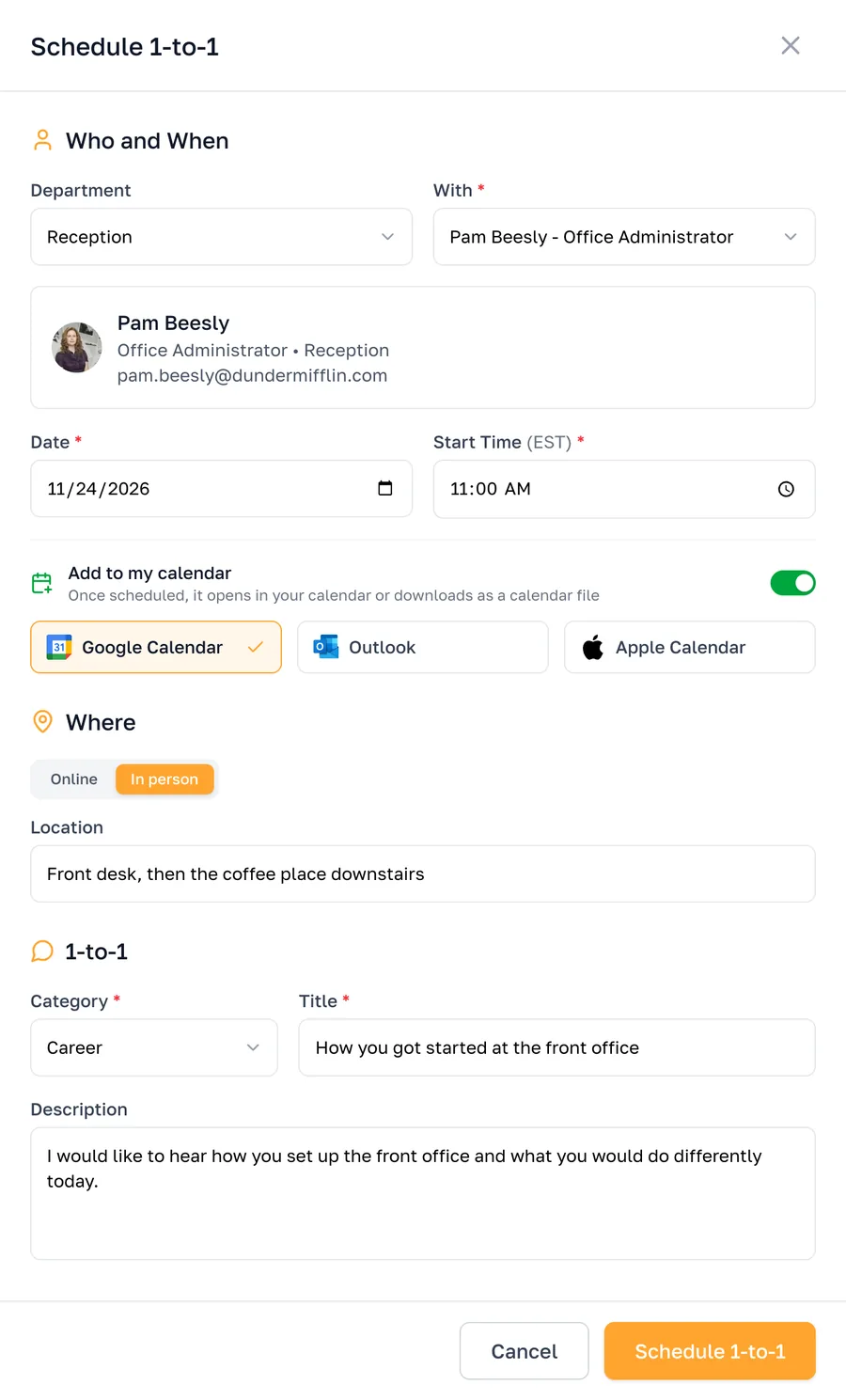
1-to-1 is a new tab under Team, in the HR portal and in every employee's portal. Schedule 1-to-1 opens one short form: the person, the day and the start time, online with a call link or in person with a place, a category, a title and what you want to talk about, so the other person can prepare.
- Their own time zone. Each person sees the start time in their own time zone.
- An email to the other person. When a 1-to-1 is scheduled, moved or cancelled.
- Ten categories of its own. From Check-in and Onboarding to Career, Pay, Wellbeing and Exit.
Both people see it in their portal
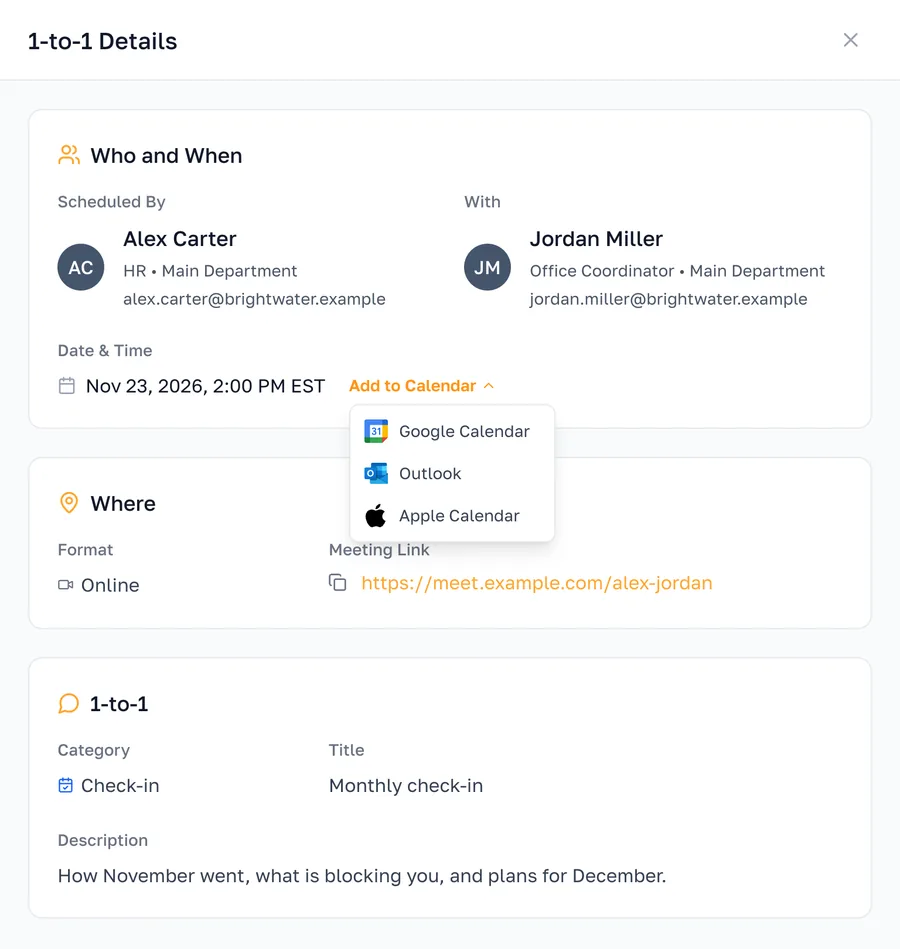
Each person finds their 1-to-1s under Team: the ones they scheduled and the ones scheduled with them. Open one to see when and where it is and what it's about, and copy the call link. Add to Calendar puts it in your own calendar: Google Calendar and Outlook on the web (Microsoft 365) open the event ready to save, and Apple Calendar downloads it as a file. Or switch on Add to my calendar right in the form.
HR sees every 1-to-1 in one list
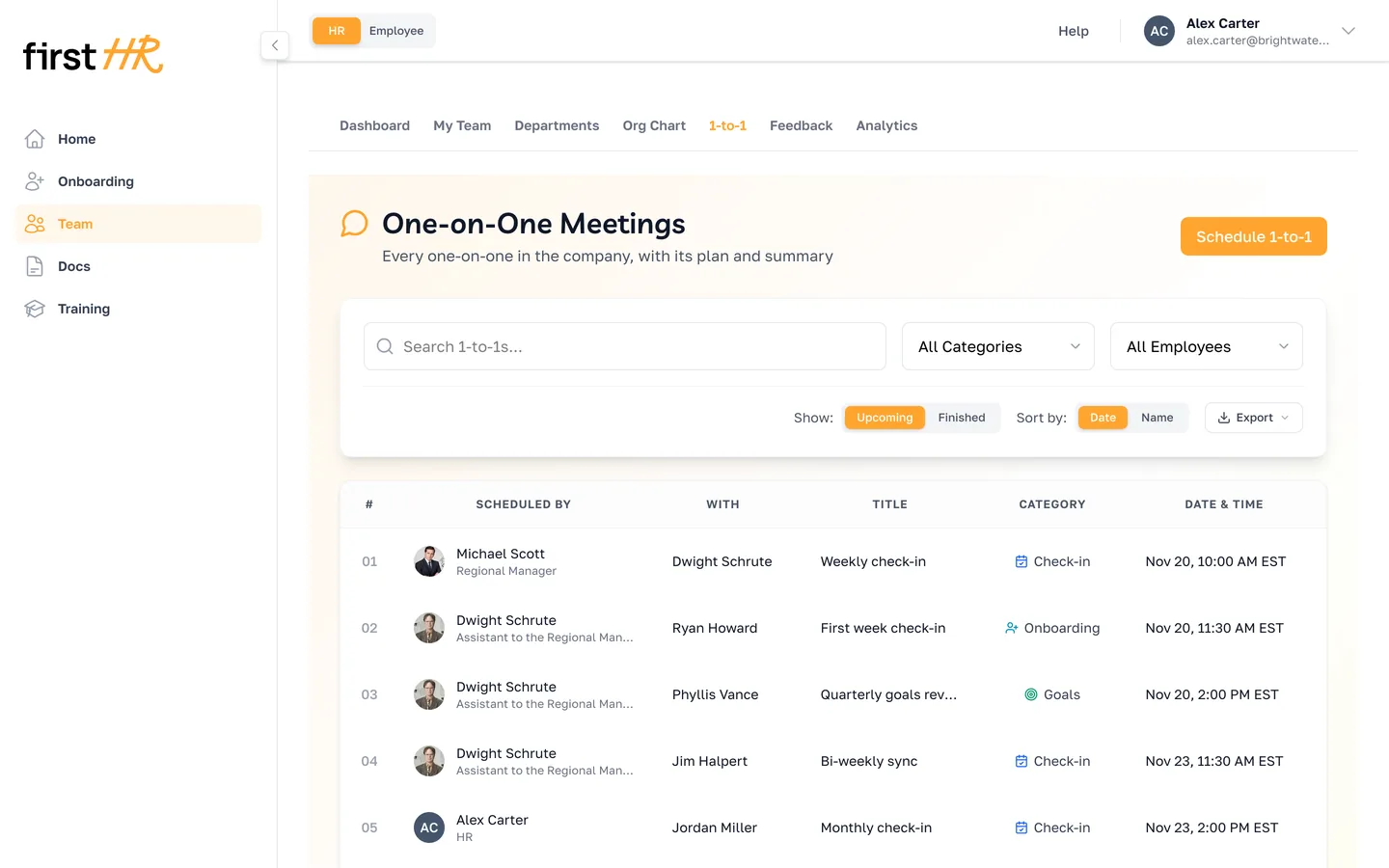
Under Team, HR and the Main Admin see every planned 1-to-1 in the company: who scheduled it, with whom, what it's about and when. Search by title or name, filter by category or person, and export the list to Excel or CSV. A 1-to-1's plan and summary are seen only by the two people in it, HR and the Main Admin.
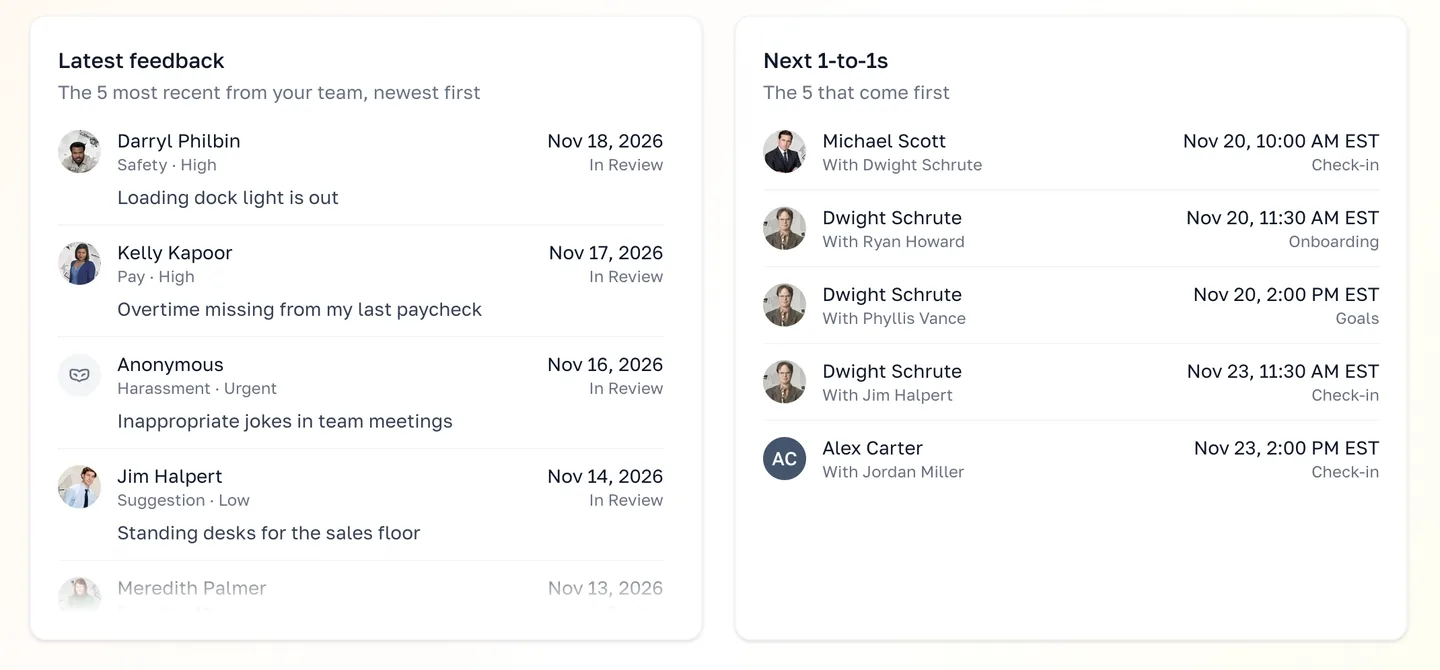
The Team Dashboard shows them too: the next five 1-to-1s, beside the latest feedback from your team.
After the conversation, a summary
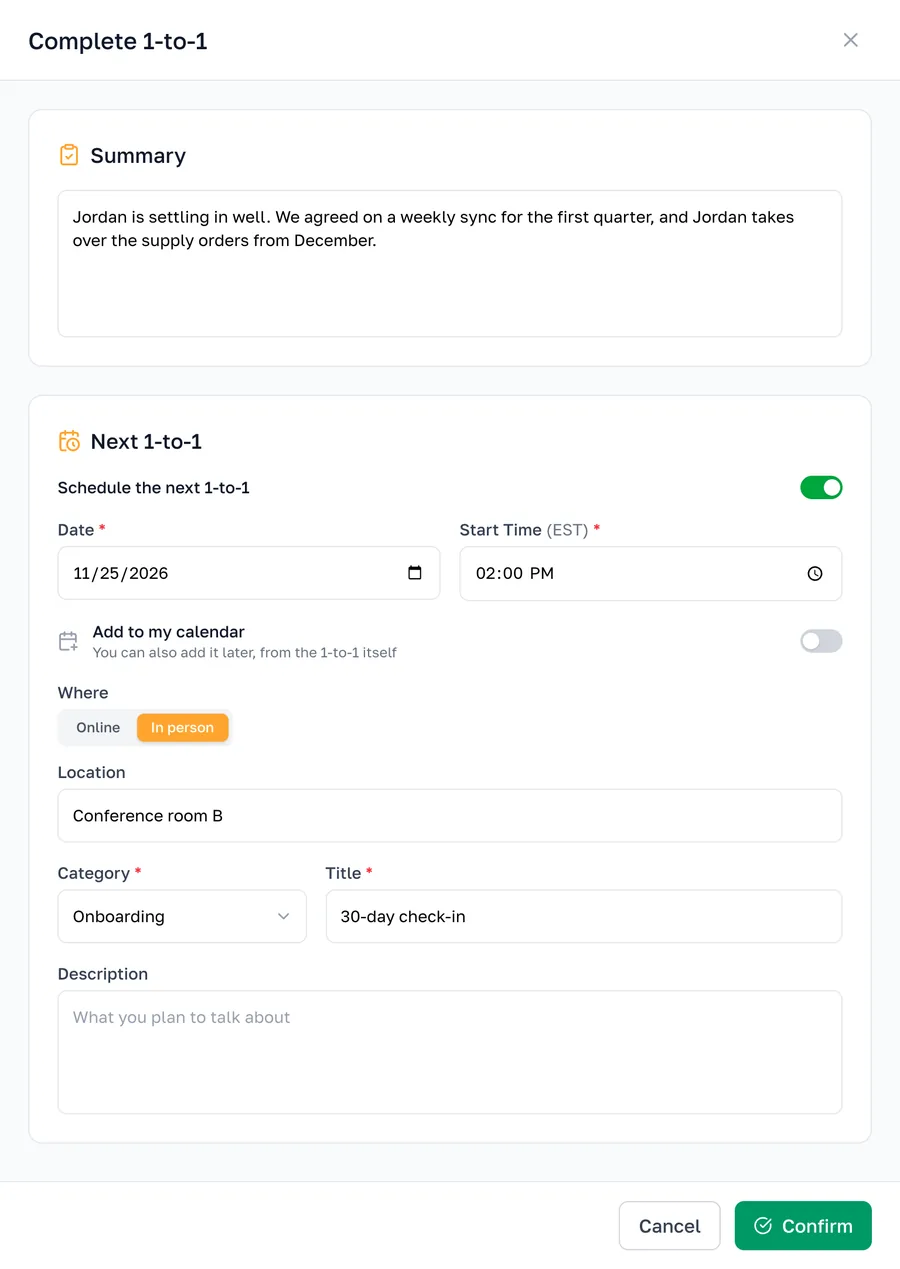
Until it's completed, the person who scheduled a 1-to-1, HR or the Main Admin can move it or cancel it, and the other person gets an email either way. After you talk, Complete 1-to-1 asks for a summary: what you talked about and what you agreed on. You can schedule the next 1-to-1 in the same step.
The other person gets an email that the summary is ready, and the 1-to-1 moves to Finished, where its summary stays for both of you.
A 1-to-1 in every onboarding
The Onboarding Wizard has a fourth button in every phase: Add 1-to-1. Pick who talks with the new hire, the day and the start time, and what it's about. It's scheduled when you launch the onboarding.
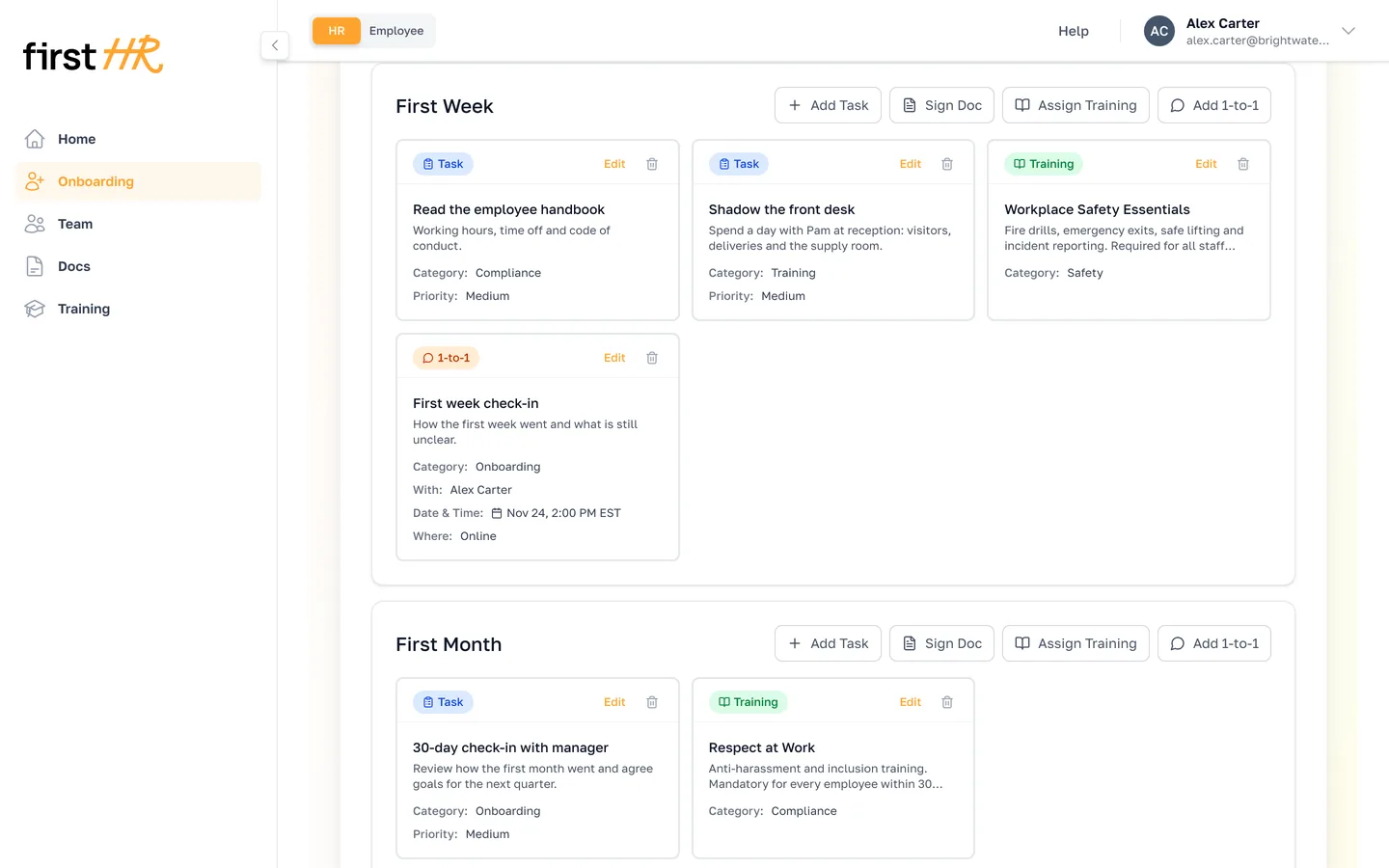
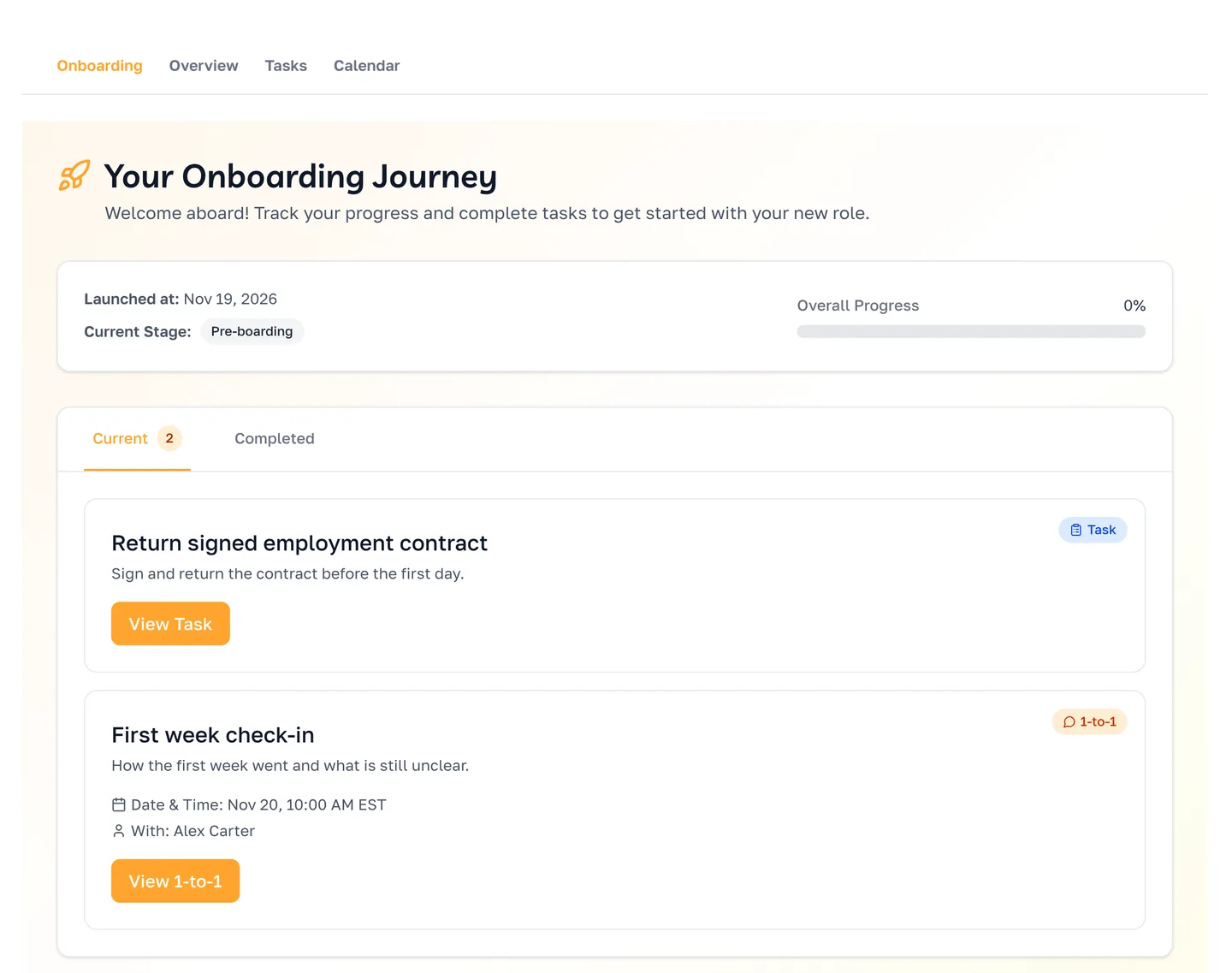
The new hire sees it in their onboarding, with when and with whom. After they talk, the colleague who holds it completes it with a summary, and the item closes on its own. On Onboarding Tracking, it turns overdue like any other item when its day passes. HR and the Main Admin can complete it too, and they cancel it by removing it from the plan with Edit Onboarding.
Templates can hold 1-to-1s too. A template keeps the title and the description, and you pick the person and the time for each new hire.
Calendar, on Home
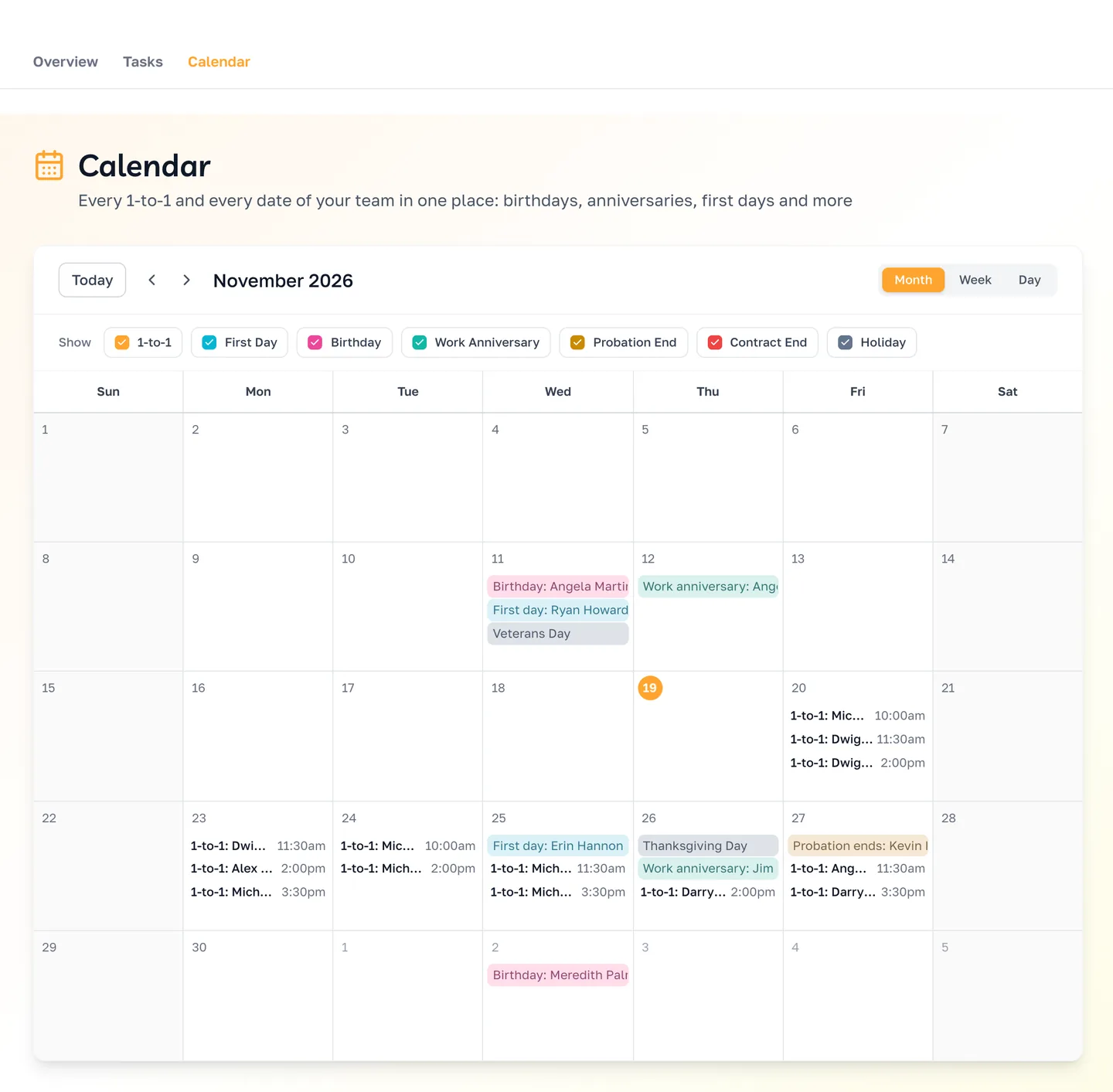
Home has a new tab, Calendar, for HR and for every employee. It shows a month, a week or a day, the marks above it hide or show each kind of event, and a 1-to-1 opens right from it.
- For HR and the Main Admin. Every planned 1-to-1 in the company, next to each person's first day, birthday, work anniversary and the end of their probation period or contract.
- For each employee. Their own 1-to-1s and dates, plus their colleagues' birthdays and work anniversaries. Birthdays show without the year.
- For everyone. US federal holidays.
Try it with your team
Feedback, 1-to-1s and Calendar come with every plan, the free trial included. You'll find Feedback and 1-to-1 under Team, and Calendar on Home, in your portal and in every employee's.
Let your team know Feedback is there. The sooner people have a place to tell you what's on their mind, the sooner you hear about it, and the easier it is to fix.
Then schedule the 1-to-1 you've been meaning to have. Write down what you want to talk about, and write the summary after you talk. Next time, you'll both know where you left off.